



 400 998 0226
 Tableau


 Tableau
 Minitab


 Alteryx


 Neo4j
Neo4j


 Talend


 IM
IM


 华为云
华为云 腾讯云
腾讯云 IT/安全
IT/安全


For business users,Tableau Prep may be just a complementary data preparation tool. However, in the recently released Tableau Prep 2023.2, you will be able to easily implement complex calculations in a single click, and help improve visual analysis performance!
Whether you want to calculate differences, percentage differences, or mobile and LOOKUP calculations, the new Tableau Prep makes it easy for you! Without further ado, let's explore the use of this feature through an example!

Introduction to table computation and multi-row computation
In Tableau Desktop, table computing is very powerful, allowing users to analyze metrics and dimensions directly in view. However, while table computation can provide more flexibility, it can also have an impact on the speed of data visualization generation.
Because table calculations are performed after the query is returned, they are performed only on the values in the query result. If you want to use table calculations on large data sets, you will most likely increase workbook load time and limit additional visual interaction. If not properly applied, it will affect the accuracy of the data.
Multi-row calculations in Tableau Prep help you push table calculations to the physical data layer, speeding up dashboard load times for large data sets. In addition, it supports filtering metrics and dimensions. This way, users don't have to worry about the impact of metrics and dimensions on the underlying table calculations.
Compared to Desktop's table calculation method, which only supports secondary calculations of table calculations, Prep's multi-row calculation provides more flexibility, allowing you to perform complex calculations without restrictions. In addition, adding the created calculation fields to the data set not only provides reuse opportunities, but also provides ease of enterprise collaboration.
Depending on the desired interactivity and usability, you can use multi-row calculations and table calculations alone, or a combination of the two.
Example:tracking Moving Averages of Sales across Regions over Time
Below, let's take a look at an example of how to use multi-line calculations to process sales data in Tableau Prep and create a dashboard to track the moving average of sales over time for different regions.
In this example, we will use the Superstore sample process that comes with Tableau Prep 2023.2. Suppose you're a regional sales manager for an online supermarket, and your goal is to track the moving average sales for each region over a three-month period. To do this, you need to use multi-line calculations in Tableau Prep to ensure that the sales director can view the data by month.
Step 1
Open the Superstore process, click to expand the aggregation step called Summary Sales, and drag and drop the Order Date field in the left data pane into the group field.
The "Order date" is then converted to a discrete "number of months" by using the drop-down option "Convert Date" in the "Order Date" group field. And rename the field to "Order Month". In this way, the data can disaggregate total monthly sales for each region over the years.

Step 2
Next, insert a new cleanup step after the aggregation step to see fields such as sales, sales region, order month, and year of sale. Click the "Sales" field card, expand the drop-down menu in the upper right corner, and select "Create Calculation Field" - "Move Calculation".
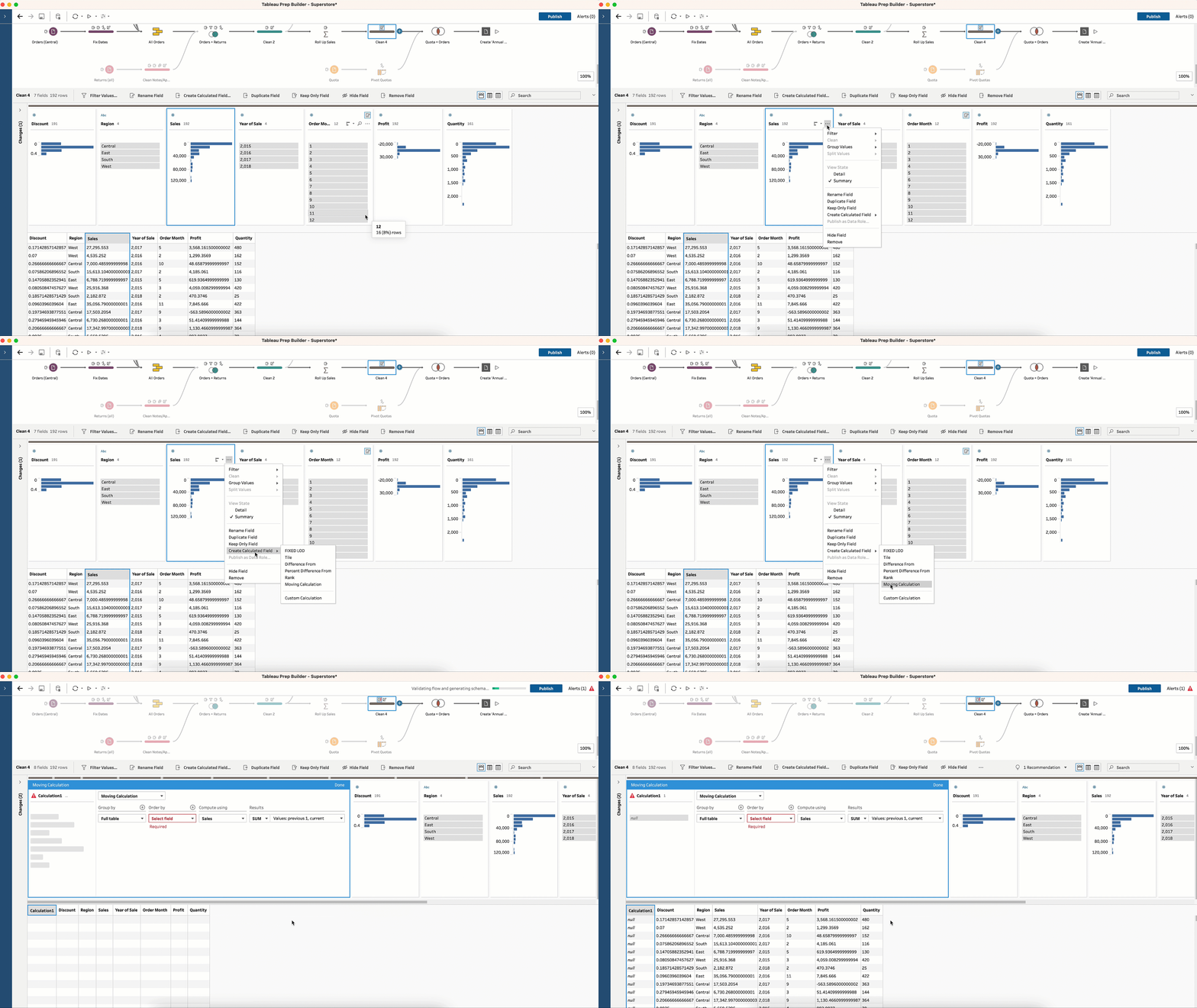
We are averaging sales, but would like to do a separate calculation for each region. Therefore, the grouping is set to "Sales Region". Then, set the sort order to sort in ascending order by Year of Sale and Month of order, keep the calculation basis as Sales, and change the result type from Moving Sum to Moving Average (AVG).

Note that in the Visual Computation Editor, the rendering of the resulting values is instantaneous and interactive. You can learn how to create calculations by looking at the comments.
You can also change the number of previous or next values depending on the type of moving average you want. In this case, we want the summary result of the moving average calculation to cover both the previous two months and the current month, so you can set the number of previous values to 2.

Note that there may be some interval differences in dates when processing date data. This is a common situation, and you can use the "New line" step to handle the date field if necessary.
Step 3
The final step is to name the calculated field. In this case, we'll name it "Moving average sales in each region over 3 months." Following best practices, you also need to describe how the field is calculated. Because proper field descriptions ensure that the calculated fields are understood and used correctly by others in the enterprise.
After configuring the multi-row calculations, you can run the Tableau Prep process to generate the data source and create a workbook to view the results. As you can see from the figure below, when you filter the order month, the view results do not change, resulting in improved query performance.

The dark line is the Prep multi-row calculation, and the light line is the Desktop table calculation
With Tableau Data Management, you can also set up a monthly update of the Tableau Prep process to get the latest data to ensure the dashboard loads the latest information quickly, making it easier and more accurate for users to interact with table calculations.
Experience the new "Multi-line computing" feature right now
The multi-line computing capabilities in Tableau Prep 2023.2 bring many advantages to your business analytics:
- Improved dashboard performance: Reduce view load times for large data sets by calculating multiple rows of calculations at the physical layer;
- Simplified interaction: workbook filters do not change how tables are evaluated;
- Improve availability: Use multi-row calculations in subsequent calculations.
If you're ready to try it out, click on the "Tableau Prep Download Trial" to upgrade your experience!


