


The Right Way to Use Miro | From Sticky Notes to Voting, Kickstart an Efficient Brainstorming Session
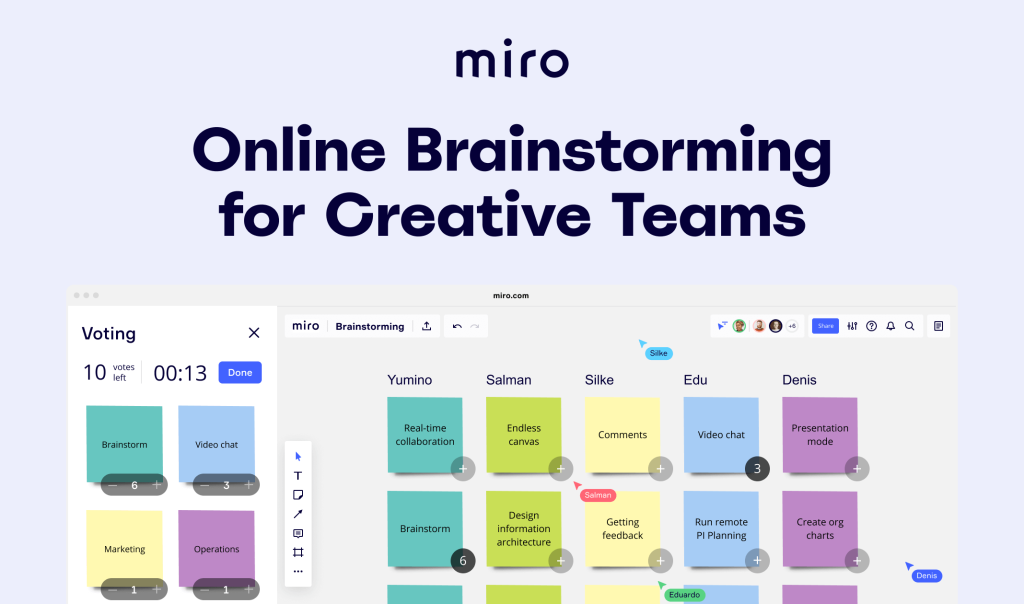
Are you still using Word to write meeting minutes, taking screenshots to collect ideas, and using Excel to summarize conclusions? After a brainstorming session, everyone feels inspired — yet when it comes to execution, everything falls apart?
At that moment, what you might really need is a whiteboard — not a physical one, but an online collaborative space that can record and organize ideas while supporting co-creation and execution — Miro!
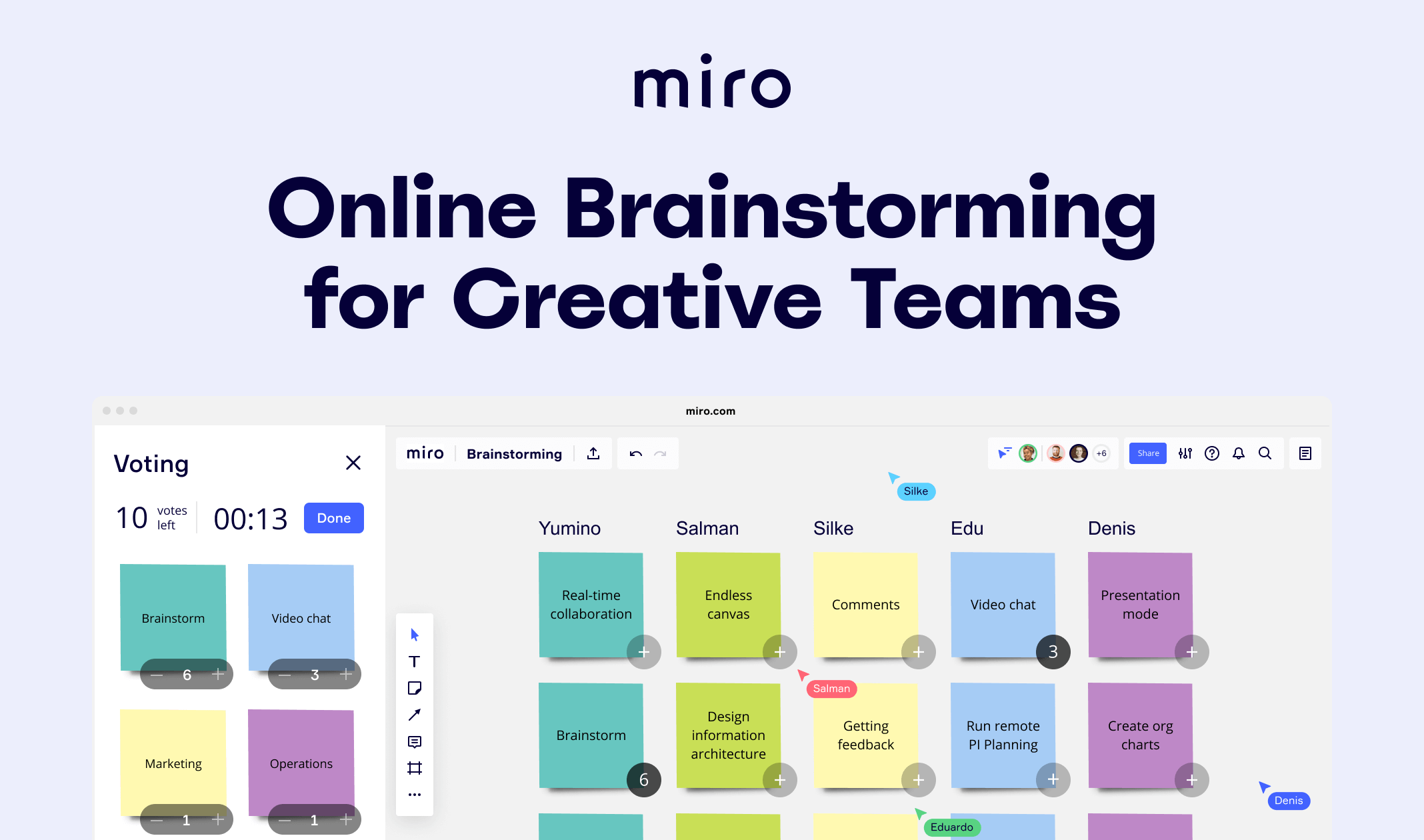
As an online whiteboard + AI collaboration tool designed for enterprise teams, Miro can serve both as a creative space and a project management toolbox.
Currently, Miro has over 90 million users worldwide and serves more than 250,000 companies — including Google, Netflix, and Salesforce — playing an essential role in team collaboration and workflow optimization.
Whether you are a product manager, marketing strategist, designer, or a remote project member, Miro can help you run a brainstorming session that truly takes you from “ideas” to “action”!
Miro Empowers Creative Teams to Enhance Brainstorming
Let’s go back to the typical brainstorming scene — everyone gathers around, posting sticky notes on a wall while the PM times and counts votes, and someone has to organize the results afterward…
The problem is that while ideas flow freely, efficiency often lags behind. The wall becomes cluttered with sticky notes, ideas are hard to categorize, discussions become too scattered, and no one wants to consolidate action items after the meeting.
With Miro, all of this changes:
- Record ideas without chaos — use sticky notes + tags for clear categorization
- Use mind maps to quickly expand, connect, and group ideas
- Engage with voting, reactions, and timers for instant feedback
- Convert ideas into task cards and integrate them directly into project workflows
Next, let’s explore how to use Miro to complete the entire process — from capturing ideas → structuring logic → voting and filtering → outputting actionable tasks — all through seamless online collaboration and real-time progress!
01 Use Sticky Notes to Quickly Capture All Ideas
After opening your Miro board, use the “sticky notes” feature to record every idea that comes to mind. You can add them one by one or use “bulk mode” to generate multiple notes at once — saving time during organization.
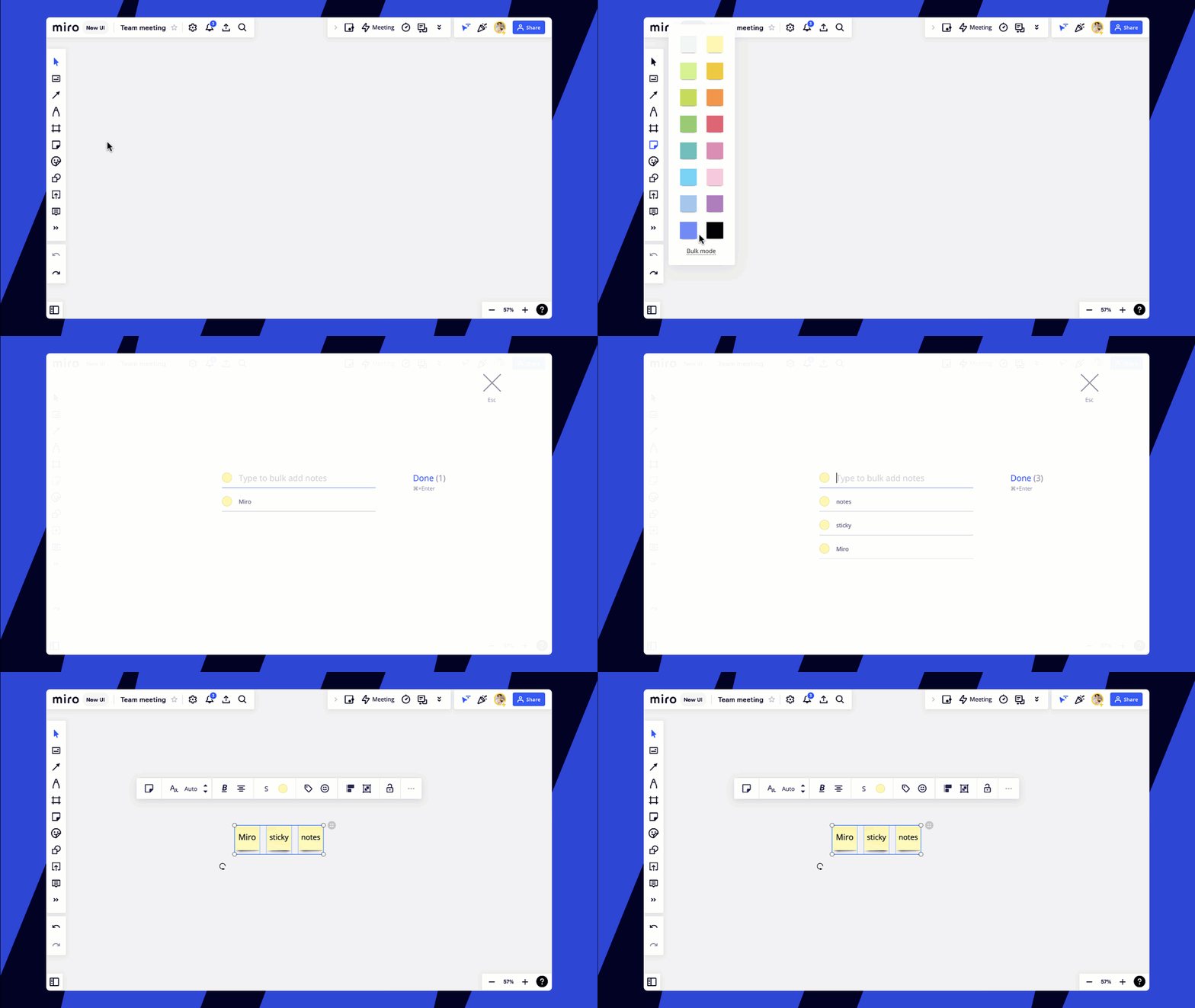
Even better, you can add pre-set sticky note packs or brainstorming templates to prepare blank notes on the canvas for team members to fill in simultaneously.
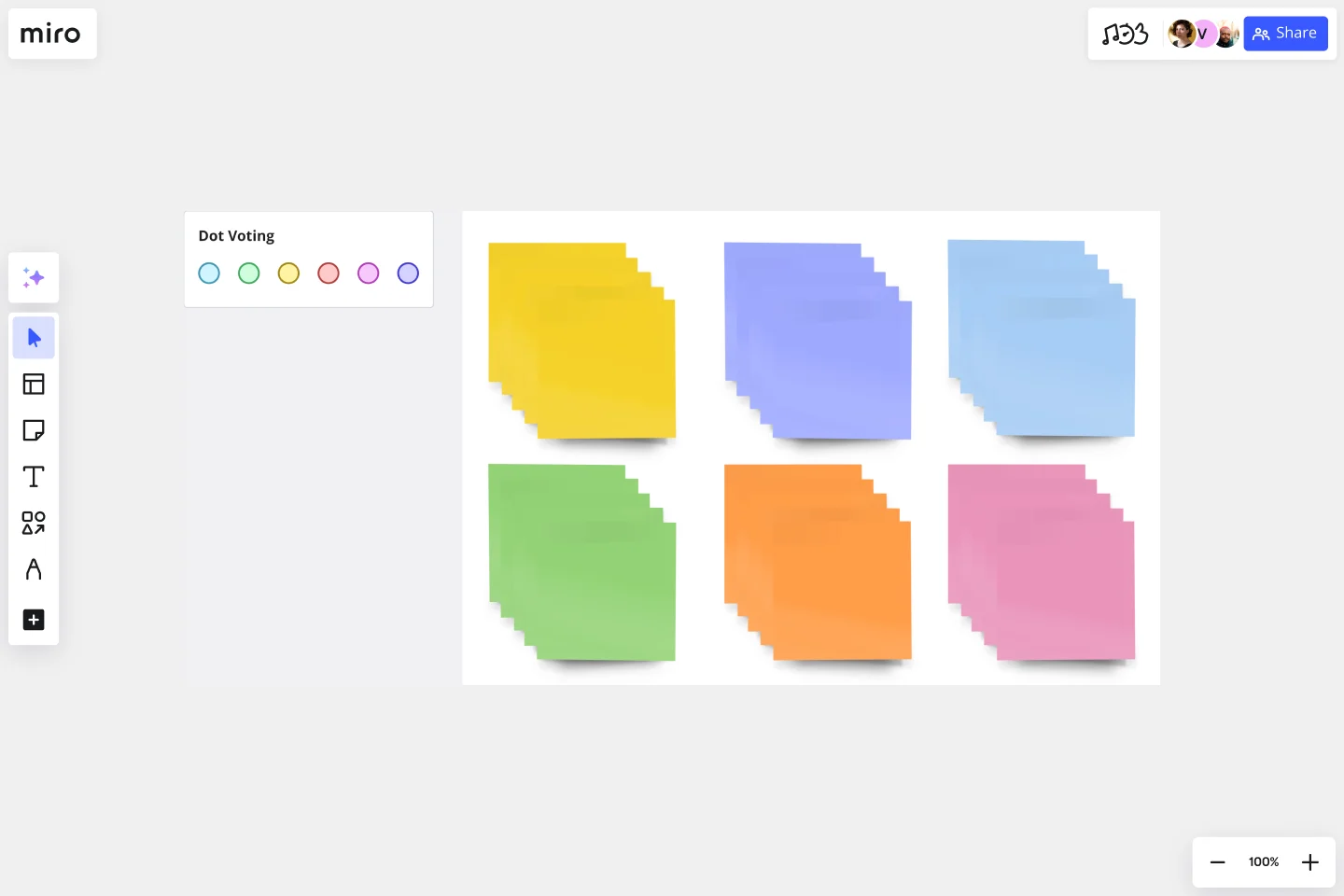
These sticky notes can be labeled, color-coded, and grouped into categories to form a structured idea pool.
When it’s time to move forward, you can convert sticky notes into task cards or Jira tickets with one click and track them on the Miro kanban board — seamlessly integrating with your project workflow.

If your brainstorming session starts offline with physical sticky notes, no problem.
Miro’s Stickies Capture feature automatically converts photos of physical notes into editable digital sticky notes, enabling a smooth transition from physical to digital spaces.

02 Use Mind Maps to Organize Logical Structures
Once you’ve gathered enough ideas, it’s time to categorize, connect, and uncover relationships between them.
Miro’s mind mapping tool is intuitive and visually clear. Start from a central topic, add sub-nodes, adjust hierarchy with drag-and-drop or shortcuts, and change colors to make ideas stand out — perfect for breaking down problems, structuring products, or refining user needs.
A clear logic leads to faster progress.

03 Use Templates to Boost Team Creativity
To make idea generation smoother and more efficient, Miro offers a rich template library covering creative and collaborative frameworks such as Mind Mapping, Brainwriting, SCAMPER, and Lotus Blossom.
You can browse templates directly in the selector or preview descriptions before choosing the one that best fits your current topic. No need to start from scratch — just apply and focus on collaboration with direction and clarity.

04 Real-Time Collaboration Tools for Smoother Discussion Flow
Truly effective brainstorming isn’t about taking turns speaking — it’s about structured collaboration that encourages more ideas, builds consensus, and drives outcomes.
Miro includes several highly practical real-time collaboration tools:
》Timer
3, 2, 1… Let’s brainstorm! Keeping time is key to productive online meetings. Use the timer to control each session’s duration, such as “3 minutes per idea” or “5 minutes for open discussion.”
You can start the timer from the collaboration toolbar at the top right of your kanban board, set background music, and adjust duration — flexible and easy!

》Voting
With just a few clicks, you can set up a voting session — define duration, number of votes per person, and voting area. The team can then choose the most promising ideas anonymously, with automatic result aggregation.

》Reactions
During discussions, whenever colleagues share an interesting idea or comment, you can react instantly with emojis — no need to type. Just select a reaction near your avatar in the top right corner, and it appears for everyone on the board to see.

》Video Chat
Miro Video Chat is a built-in feature that lets you and your teammates feel like you’re in the same room.
To invite board participants to join a video session, click the “More Apps” button, then select “Video Chat.” Make sure your camera and microphone are on, then click “Start.”
This allows you to start a video call directly within Miro — no need to switch apps. If you prefer Zoom, you can also install the Miro for Zoom plugin to embed the whiteboard directly into your video meetings.

Start Using Miro Now — Experience the Power of Smart Collaboration
The real challenge of brainstorming isn’t having ideas — it’s how to collect, organize, and apply them.
With Miro, starting from sticky notes, you can move step by step through: capture → organize → evaluate → convert → execute. The whole process is structured, traceable, and easy to revisit, modify, or follow up on.
Next time your team wants to “spark great ideas,” try opening Miro — the right way!