


The Right Way to Use Miro | From Meeting Preparation to Consensus Output, One-Stop Solution for Remote Meeting Challenges
In daily corporate collaboration, meetings are almost everywhere: from project kickoffs, design reviews, cross-department coordination, to product roadmap co-creation and strategy workshops… These meetings have different purposes but face common challenges:
- How to align goals and agendas to keep the meeting on track?
- How to focus participation and discussion, avoiding distractions like “you talk, I scroll on my phone”?
- How to record and consolidate conclusions to ensure results can be tracked and executed?
- How to support remote or hybrid scenarios and allow participants from different locations to join in real-time?
Inefficient meetings aren’t because people aren’t serious, but because we lack a structured way to run them. This is the core issue Miro helps solve.
As an online visual collaboration platform favored by cross-regional teams, Miro offers a complete solution for remote/hybrid teams, from pre-meeting preparation, to in-meeting facilitation, to post-meeting consensus building and task tracking:
✅ Pre-meeting: Select templates, plan the structure, invite collaborators;
✅ During the meeting: Real-time co-creation, group discussions, voting decisions;
✅ Post-meeting: Output minutes, assign tasks, connect to execution systems.
Whether you’re organizing a strategic workshop, cross-department alignment meeting, or remote OKR session—Miro can turn “meetings” into actual “progress.”
Miro Features for Efficient Meetings
Whether you’re presenting a product pitch or conducting a quarterly review with leadership, the core goal of meetings remains the same: focus the discussion, ensure participation, and reach consensus. Miro’s suite of “meeting-centric” features will help you accomplish these tasks.
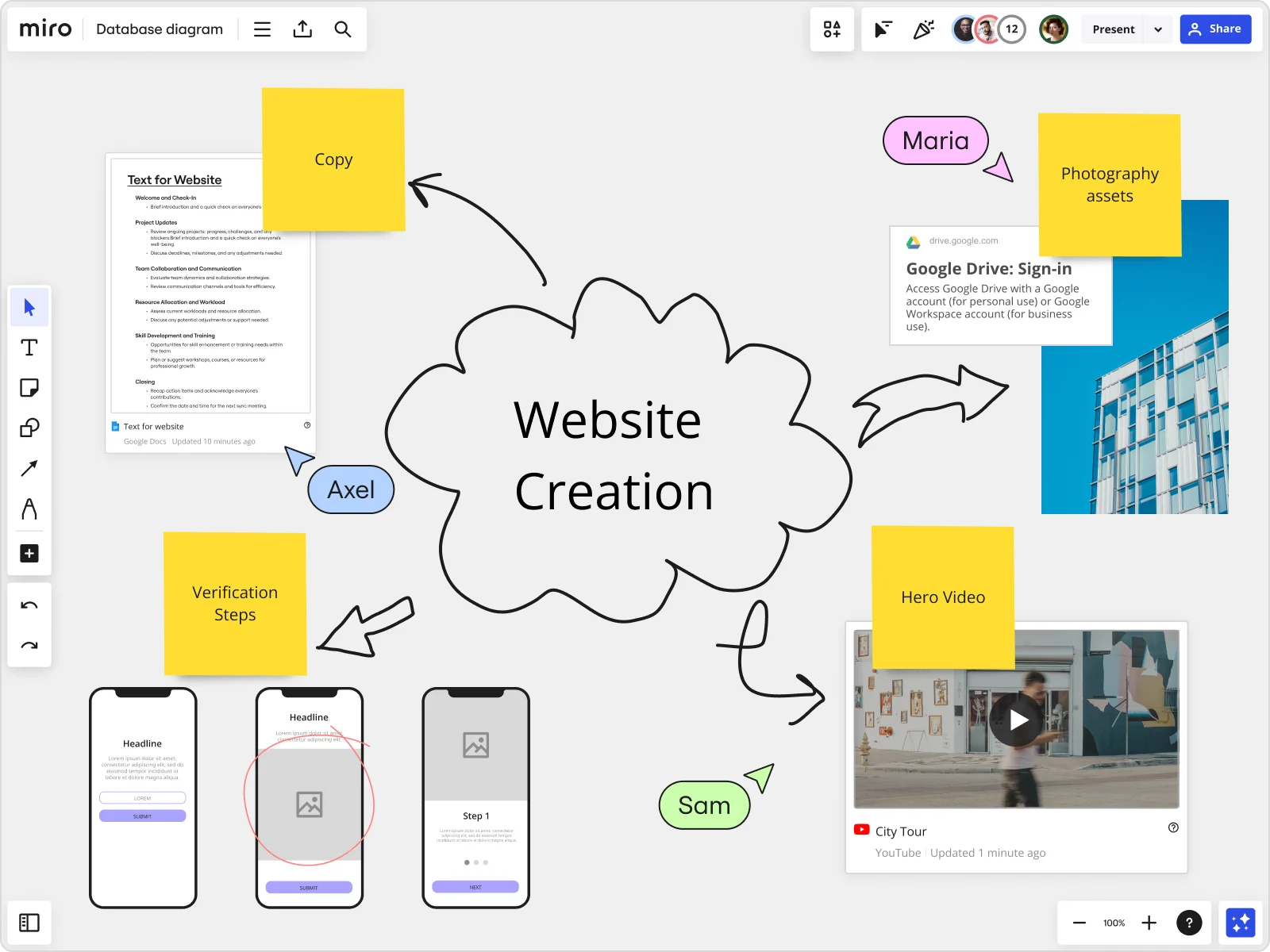
01 Infinite Canvas, Infinite Possibilities
Miro’s Infinite Canvas provides an unlimited whiteboard space, meaning your meeting space is no longer constrained. This allows you to lay out everything from flowcharts and strategic frameworks to mind maps, supporting the entire process from conceptualization to final presentation.
Suitable for: group brainstorming, full-process meeting mapping, complex information presentation.
02 Freehand Drawing and Smart Shapes
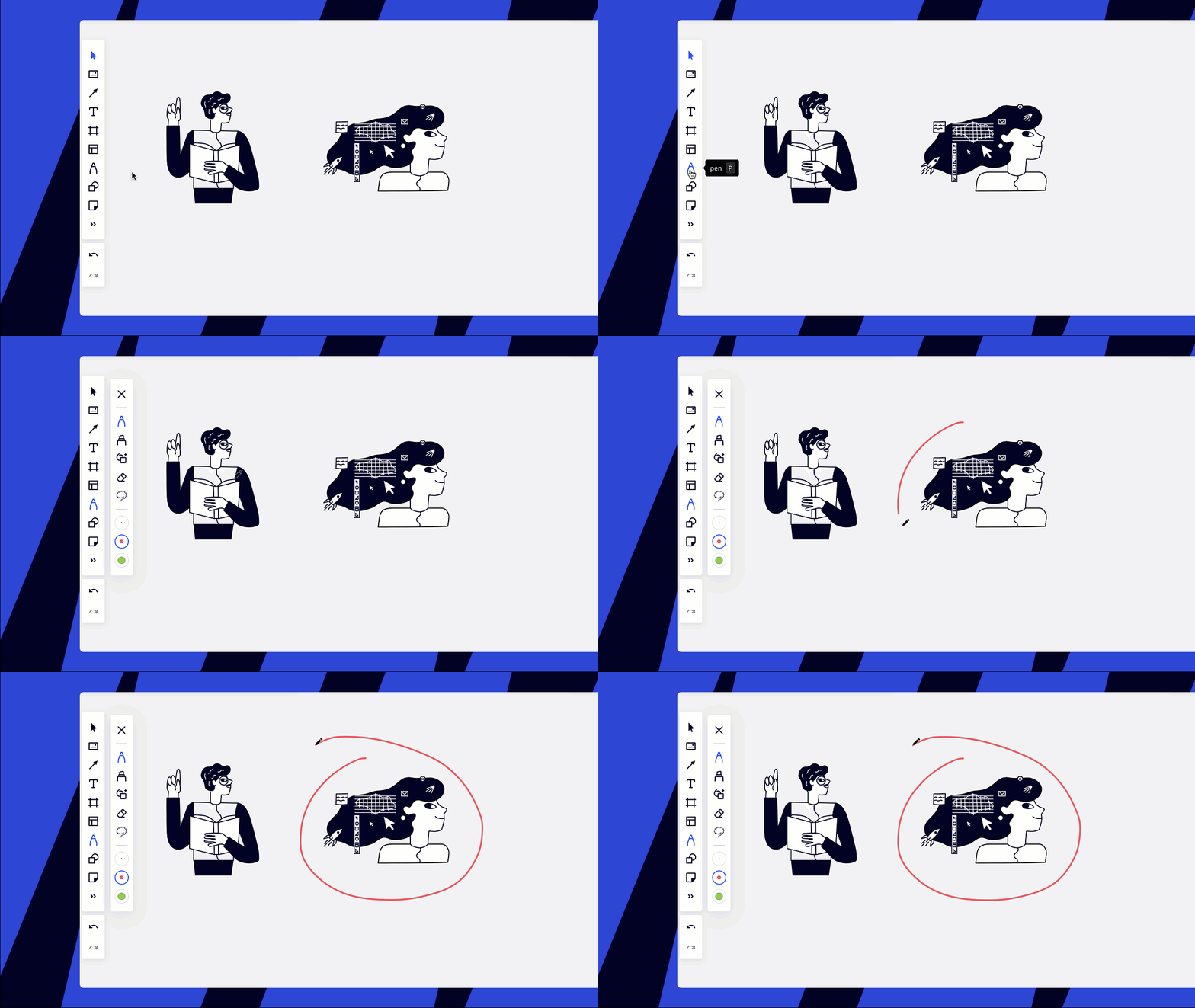
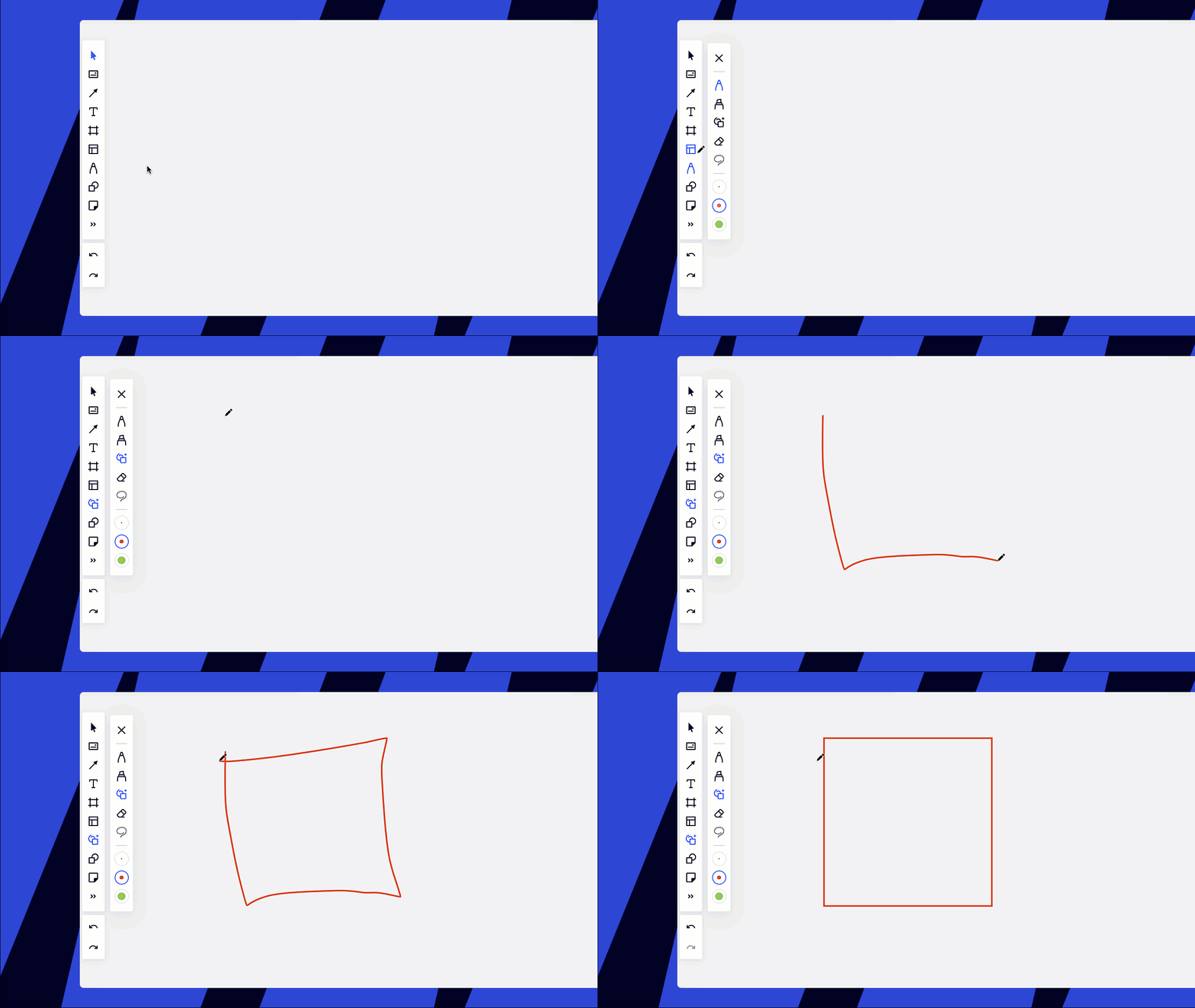
On Miro’s whiteboard, users can freely sketch using the Pen tool or activate “Smart Drawing” mode, automatically converting your sketches into standard shapes or sticky notes, improving meeting efficiency and readability.
Suitable for: quick sketches and hand-drawn expressions.
03 Sticky Notes and Physical Sticky Note Scanning
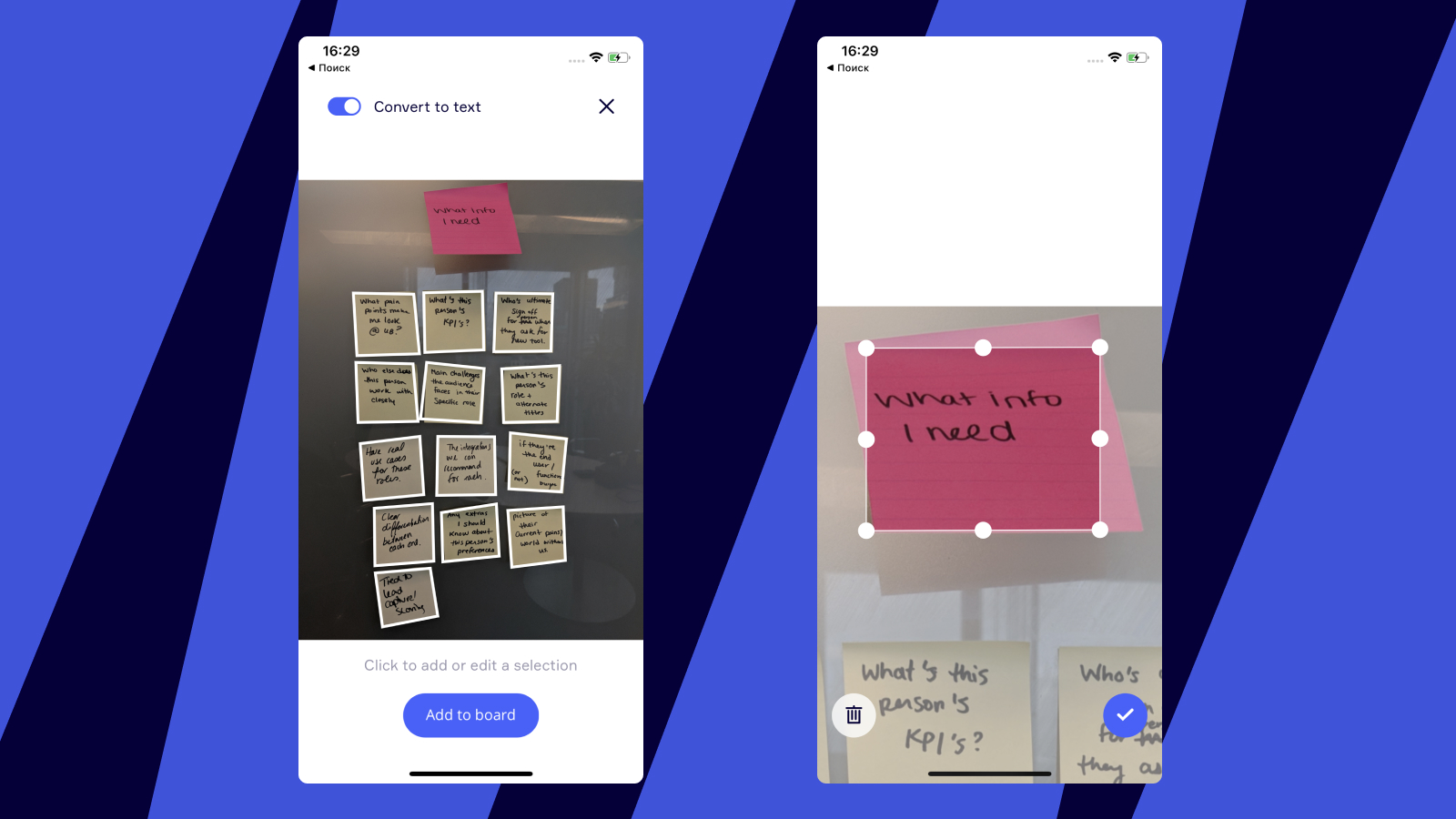
Miro natively supports sticky note operations, allowing quick input and bulk management, with tag and clustering analysis. Even if you still prefer handwritten sticky notes during meetings, you can use the “Stickies Capture” feature to take a photo and automatically convert it into digital content.
Suitable for: workshops, user interviews, design sprints.
04 Attention Guidance
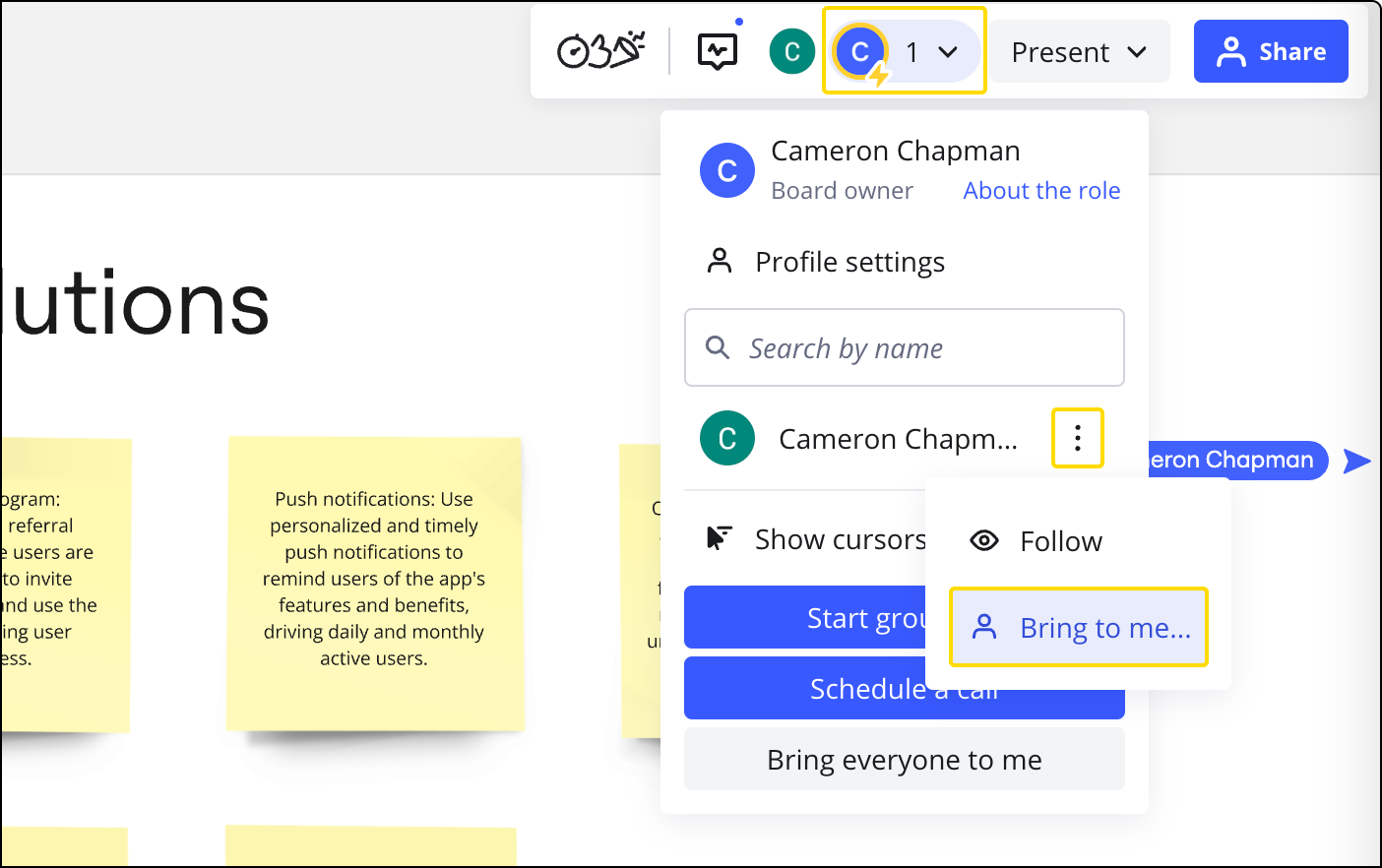
The meeting facilitator can use operations like “Bring to me”, “Follow”, and “Bring everyone to me” to focus the participants’ view on key content, ensuring everyone stays on track.
Suitable for: large meetings, remote workshops, sessions requiring facilitation.
05 Built-in Video Call
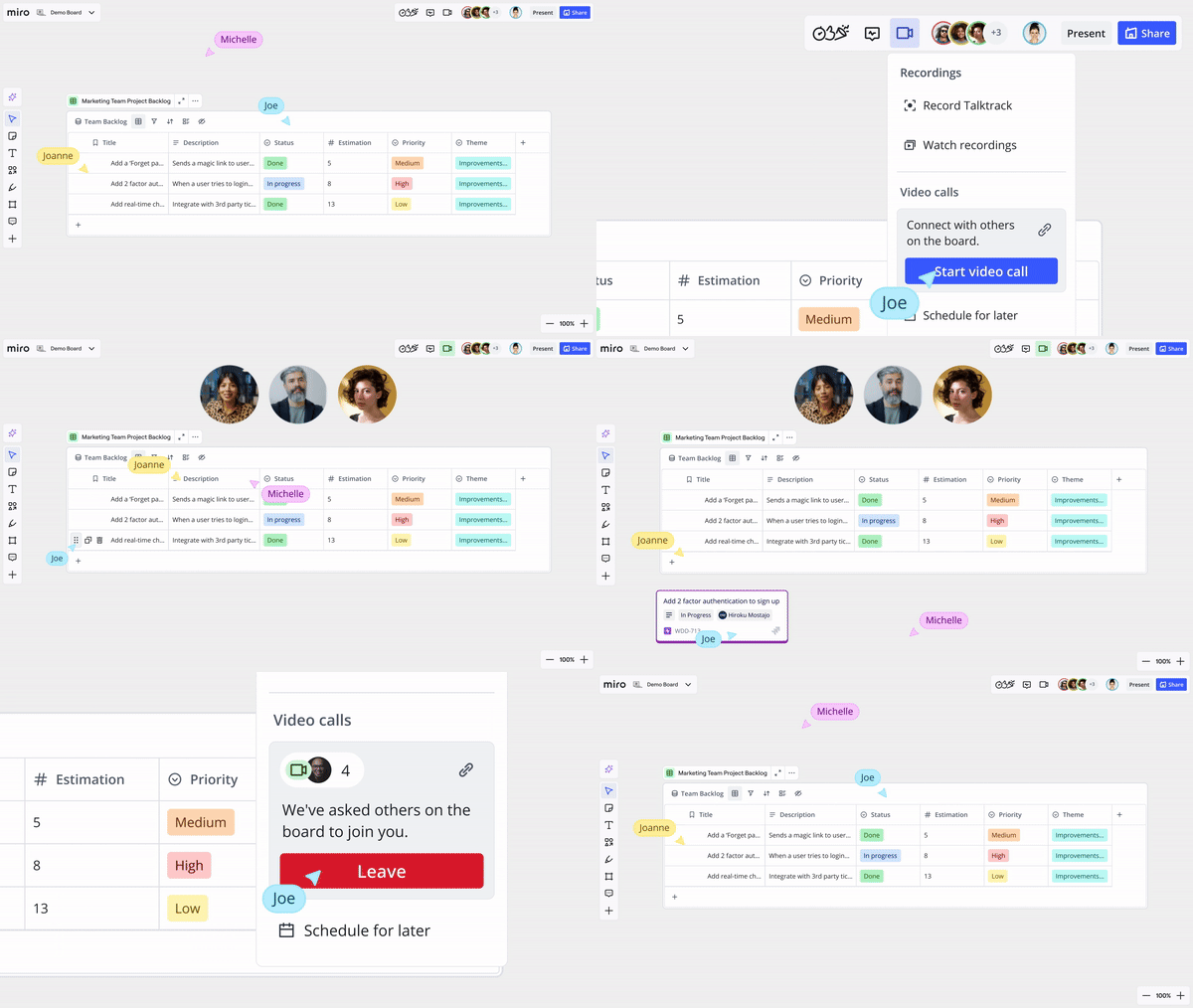
You can start a video call directly within Miro, eliminating the need to send separate links or switch platforms, achieving seamless integration of content presentation and meeting communication.
Suitable for: remote meetings, reducing switching costs.
06 Interactive Presentation Mode + Lightweight Rich Text Notes
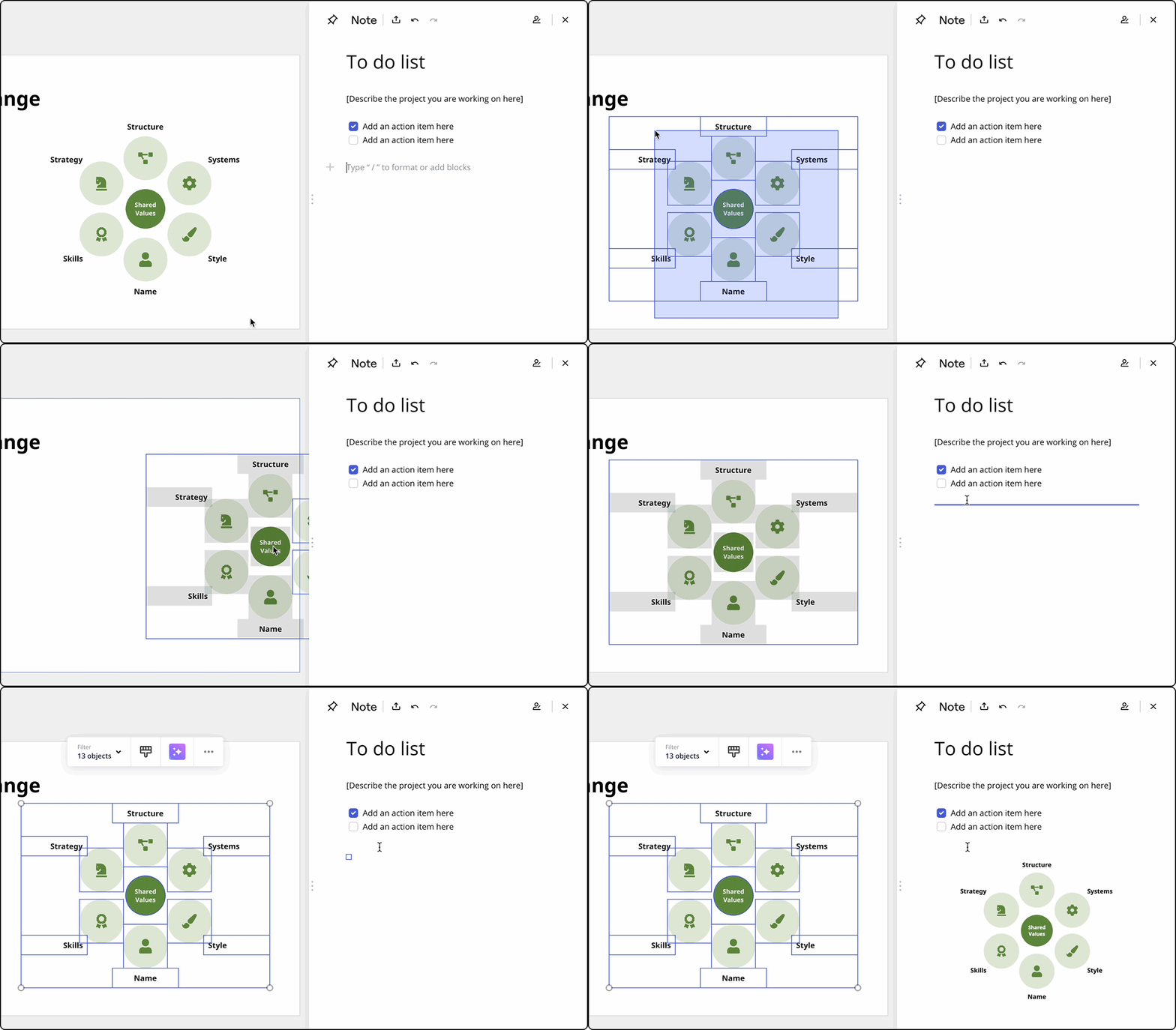
You can activate the interactive “Presentation Mode” to showcase content in phases, and at any time insert “Visual Notes” to record meeting minutes, action items, and issue lists, ensuring that information is continuously captured.
Suitable for: formal reports, proposal reviews, retrospectives.

07 Rich Templates, One-Click Meeting Setup
From icebreaker models to OKR planning, from Design Sprint to Agile Retrospective, Miro offers a rich library of meeting/workshop templates, allowing you to skip building frameworks from scratch.
Suitable for: quickly organizing workshops, reusing meeting structures.
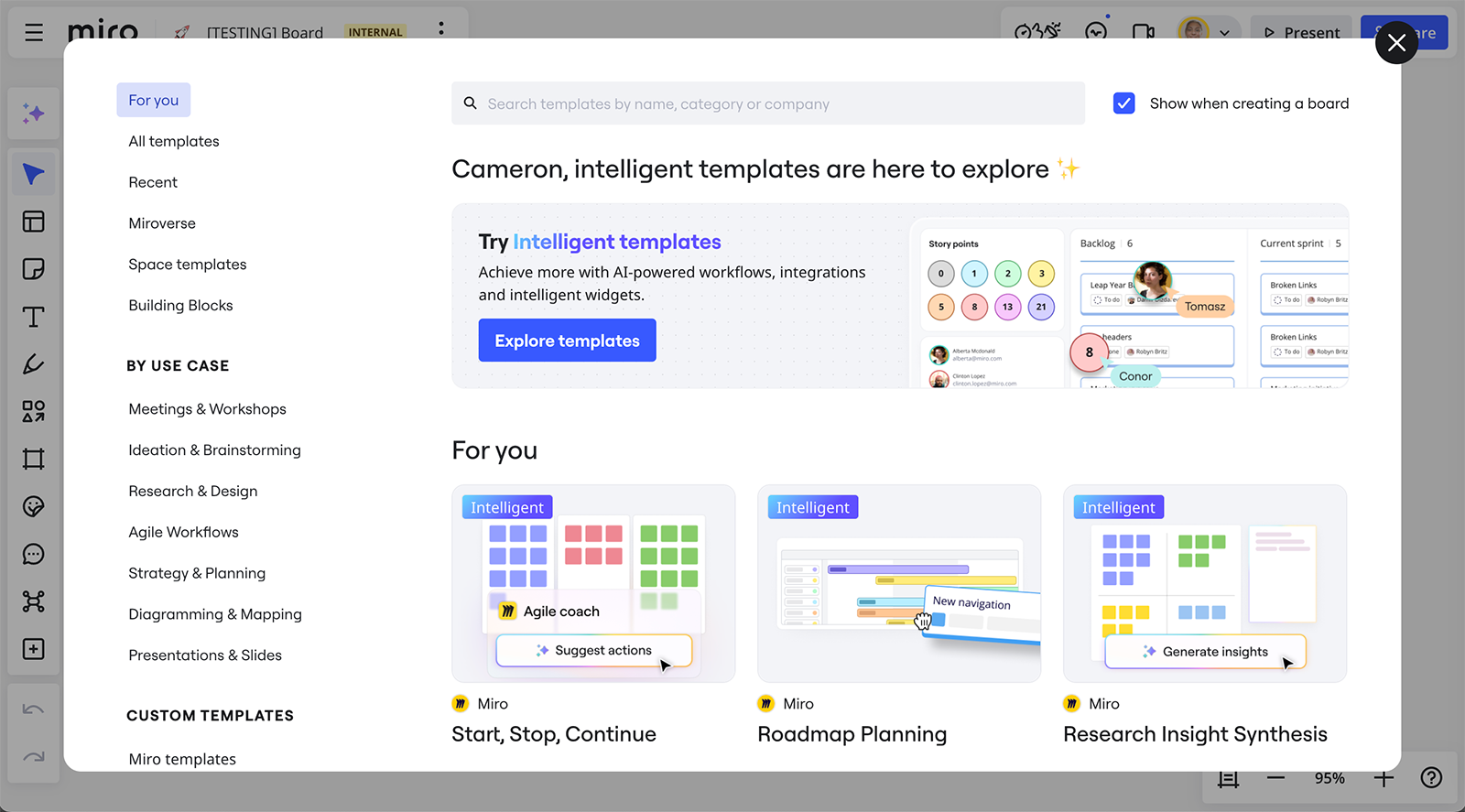
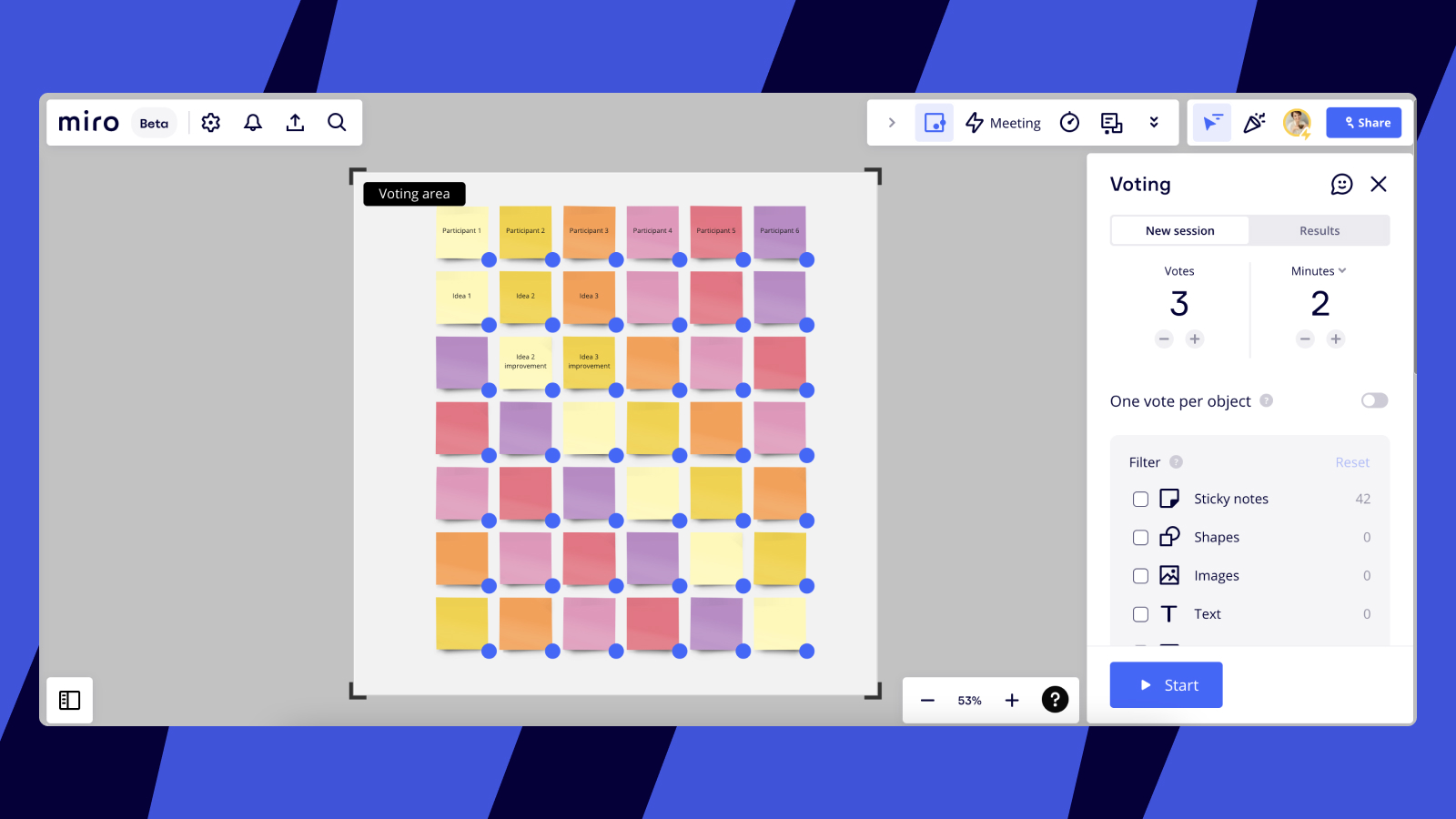
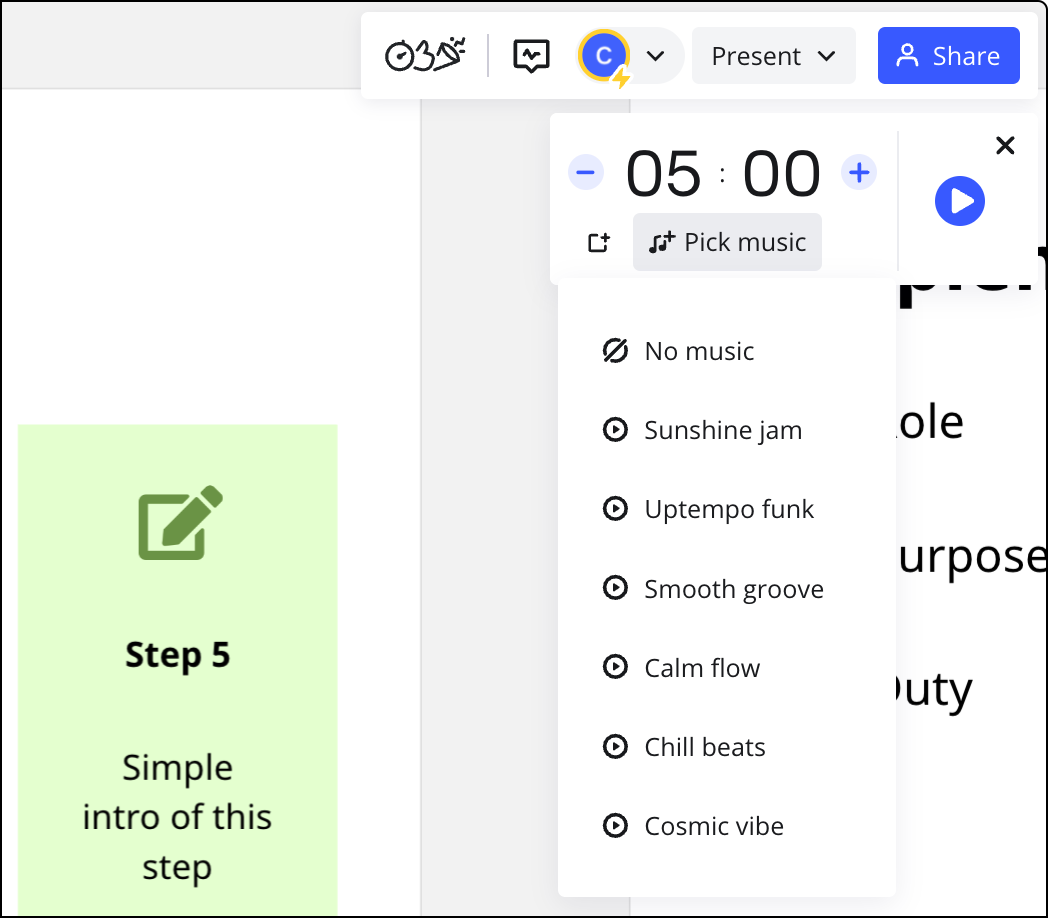
08 Real-Time Voting and Timer
Miro’s board features the “Voting” function for anonymous or named voting, helping quickly focus on priorities, and the “Timer” feature to set time reminders, keeping meetings on track.
Suitable for: consensus-building or time-boxed co-creation sessions.
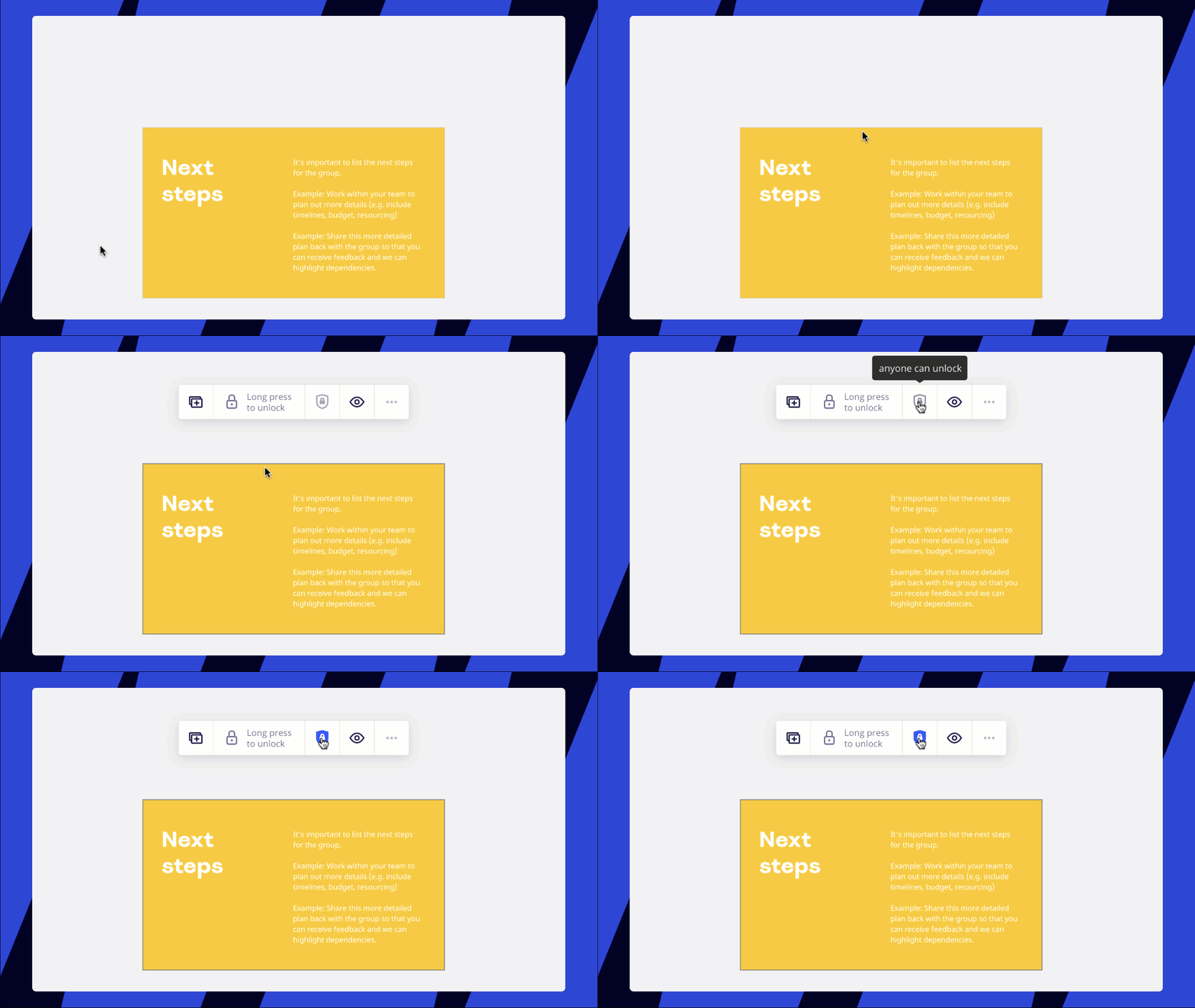
09 Locking Mechanism + Guest Editing Permissions
In Miro, you can lock important content to prevent accidental changes, and share the whiteboard with guests who don’t have Miro accounts, granting them editing rights to participate in the meeting, increasing flexibility and openness.
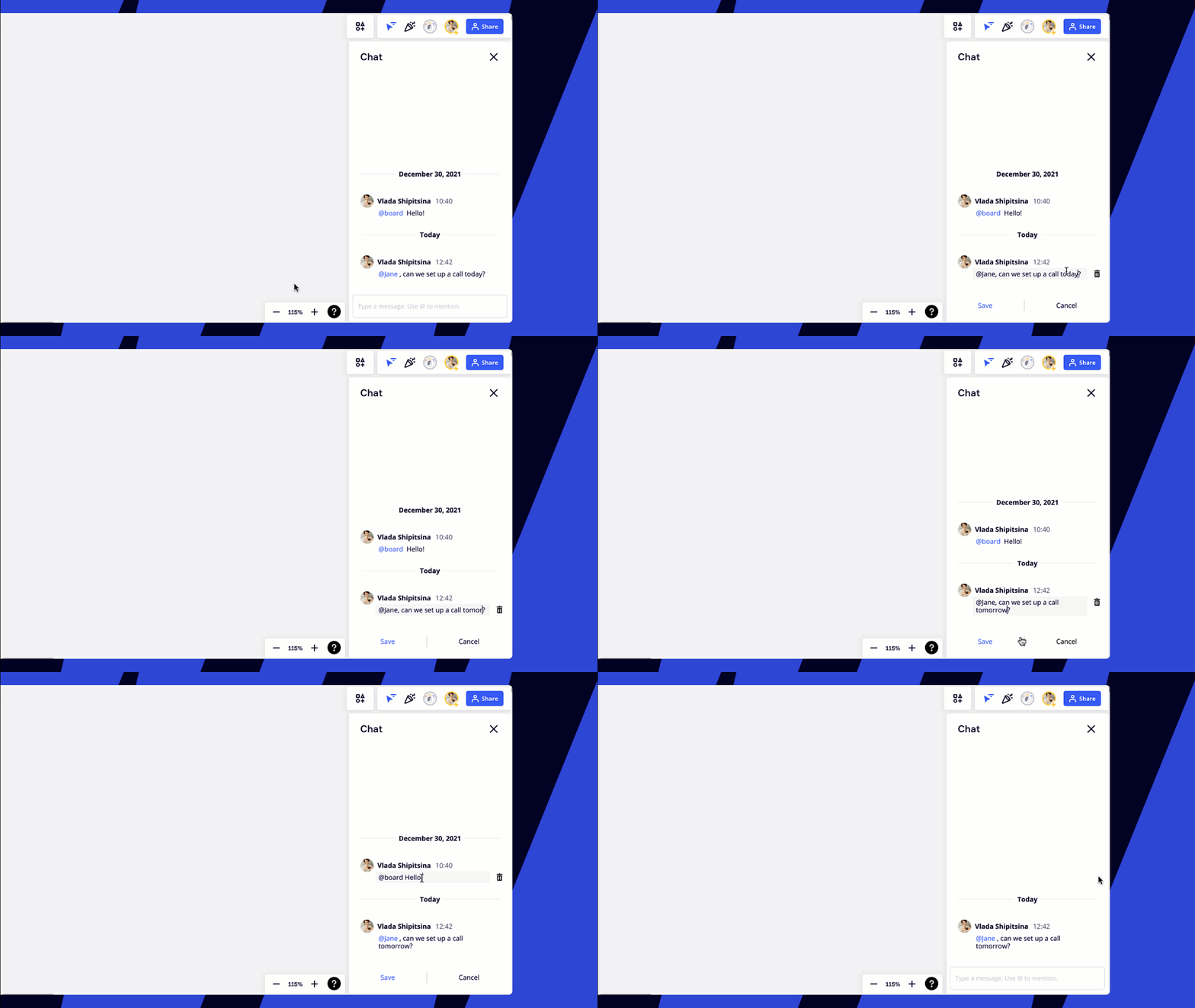
10 Chat Function Within the Whiteboard
No need to switch to an IM tool. You can initiate a chat directly within the Miro whiteboard to quickly coordinate task assignments and respond to feedback.
Suitable for: real-time communication when multiple people are working simultaneously.
PS: Most of the features listed above are available in the free plan (such as infinite canvas, sticky notes, templates, visual notes, etc.). To unlock advanced features like video calls, voting, and timers, you can upgrade to the Starter or higher plans.
How to Organize an Efficient Meeting with Miro?
Whether you’re hosting a remote workshop, cross-team brainstorming session, or user co-creation meeting, Miro provides a complete workflow and tool support.
From “pre-meeting preparation” to “in-meeting collaboration” to “post-meeting documentation,” this is a workflow you can copy and use directly:
- Before the Workshop: The facilitator can quickly create a canvas using Miro’s preset templates, embedding the meeting agenda, operating guidelines, and stage-based task modules. It is recommended to combine Miro’s presentation mode and time management (timer) features to break the meeting into time-boxed stages, helping participants focus on each task phase.
- During the Workshop: Facilitators can guide participants through ice-breaker activities using interactive sticky notes or emoji voting. Afterward, the free collaboration phase begins, where everyone can doodle, stick notes, categorize ideas, and build flowcharts on the infinite canvas. Facilitators can also use the “Bring to me” function to focus everyone’s view on specific areas to maintain the pace.
- During the Retrospective: Miro’s Visual Notes feature helps record key conclusions and follow-up action items. You can also directly copy the canvas template used in this workshop for future use.
Best Practices
- It is recommended to limit the workshop duration to 2 hours, with adequate breaks if it runs longer.
- The number of remote meeting participants should be limited to 15 people. If it exceeds, a co-facilitator is recommended.
- All processes, activities, and feedback stages should be time-boxed to enhance efficiency.
- Each exercise on the whiteboard should have a text description to reduce understanding barriers.
- Always prepare a Plan B: Technology might fail, so it’s best to have an emergency solution ready.
More Practical Tips for Using Miro for Meetings
Once you’re prepared for a workshop, collaborative meeting, or whiteboard collaboration project, the next step is to invite others to participate, use the meeting tools effectively, and seamlessly integrate them into your existing workflow.
Here are 5 key actions you must know:
How to Invite Collaborators
✅ **Option 1: Open Access Link (Visitors Mode)**
- If you want to quickly invite external users who are not registered, the easiest method is to enable the “Edit Access for Visitors” link. Once enabled, anyone with the link can access and edit the board without needing to log in or pay.
- Suitable for temporary workshops, public collaborations, or guest participation scenarios.
- The link can be shared freely and flexibly.
- Be cautious about confidentiality: visitors with the link are granted editing access by default, so the scope of content should be carefully controlled.
✅ **Option 2: Invite as a Guest**
- On the Business plan, you can invite guests via email to edit a specific board without adding them as formal team members.
- Suitable for collaboration scenarios that require external editing access but with higher security.
- Board access is limited to invited email addresses, making it easier for auditing and tracking.
✅ **Option 3: Free Plan**
- The free plan also supports collaboration, ideal for personal users or small teams to experience remote collaboration scenarios.
- You can invite an unlimited number of collaborators to join the team and edit the whiteboard.
- The whiteboard is an infinite canvas.
However, there are some limitations in features:
- You can only keep 3 editable whiteboards, and the rest will be archived automatically.
- Whiteboards are visible to all team members by default.
- Features like video calls, timers (Timer), and voting (Voting) are not supported.
Video Conferencing Features
Miro allows you to host remote meetings and real-time presentations directly on the whiteboard, seamlessly integrating visual collaboration with voice communication:
✅ **Option 1: Built-In Video Conference**
- Can host video calls with up to 25 participants simultaneously.
- Suitable for Starter, Business, and Enterprise plans.
- The whiteboard and video call are integrated seamlessly for a coherent collaboration experience.
✅ **Option 2: Integration with Popular Video Tools**
- Zoom Integration: Open the Miro board directly within Zoom.
- Microsoft Teams Integration: Embed the board within Teams meetings for presentations and editing.
- Webex Integration: Embed Miro boards in Cisco Webex scenarios.
✅ **Option 3: Other Meeting Tools**
- Miro can also be used with any third-party meeting platform. The host can open the Miro board and share their screen, allowing other participants to join the discussion and collaboration.
Meeting Template Feature
Don’t start from scratch. Miro offers a massive library of templates, covering the entire collaborative process from brainstorming to retrospectives:
- Common templates: such as Brainwriting, Retrospective, Ice Breaker, etc.
- Custom templates: You can save your whiteboard as a template and share it with your team.
- Enterprise-level template sharing: Enterprise plans allow templates to be shared across teams, unifying collaboration standards.
- Best Practice: Start with official templates and gradually build your team’s “best practice template library.”
Popular Integrations
Miro integrates deeply with mainstream tools, ensuring a smooth collaboration experience without jumping between platforms:
- Slack / Microsoft Teams: You can receive Miro comment notifications and @mentions