


Intercom Practical Guide (2): When a Mobile “User” Isn’t Really Logged In
As an official Intercom partner, DKM Ecosystem has found through serving numerous domestic Chinese and global expansion enterprises that organizations frequently encounter various technical challenges, process obstacles, and business implementation issues during different stages of Intercom deployment, implementation, and operations.
To address these challenges, we have launched the “Intercom Practical Guide” series. Drawing on real-world project experience, this series systematically explores common issues and best practices across customer service, AI Agents, automation workflows, data management, and omnichannel integrations.
Whether you are a customer support specialist, operations professional, product manager, developer, or business leader, you will find practical insights and solutions tailored to real business scenarios.
Many teams assume one thing when implementing Intercom Messenger, Fin AI Agent, or automated Workflows: if a contact appears as a User in Intercom, then that person must already be logged into the app. In practice, however, this assumption is often incorrect.
This article focuses on common misconceptions around mobile user identification, helping you understand why an Intercom User is not necessarily a genuinely authenticated user and how Workflow, Procedure, and related mechanisms can prevent AI support and automation processes from being triggered incorrectly.
Many mobile app teams encounter similar questions:
Why does a user appear as a User in Intercom even though they have not logged into the app?
Why does the AI support assistant treat an anonymous user as an authenticated user?
Why are certain Workflows or Procedures triggered incorrectly?
These issues may not be obvious in web environments, but they are extremely common when using mobile app SDKs. The reason is simple: a User in Intercom is essentially a contact object within Intercom and does not necessarily represent the currently authenticated user in your business system.
💡 The key to mobile user identification is not how Intercom labels the contact, but whether the current app session is genuinely authenticated and linked to a real business user.
Common Misconception: Using Contact Type Alone to Identify User Status
When configuring Workflows, many teams create rules such as: “If Contact Type = User, route to the authenticated user flow.” While this logic may work in simple scenarios, it introduces significant risks in mobile applications.
This is because mobile user status is typically influenced by multiple factors:
- Whether the app session is genuinely authenticated
- Whether the login status has been synchronized to Intercom
- Whether Messenger has retained previous conversations
- Whether the user has recently logged out or switched accounts
- Whether Workflow and Procedure include additional validation checks
💡 In other words, just because Intercom displays a contact as a User does not mean the user is currently logged in. Relying solely on Contact Type can easily lead to incorrect workflow triggers, identity misclassification, and even inappropriate access to personalized data.
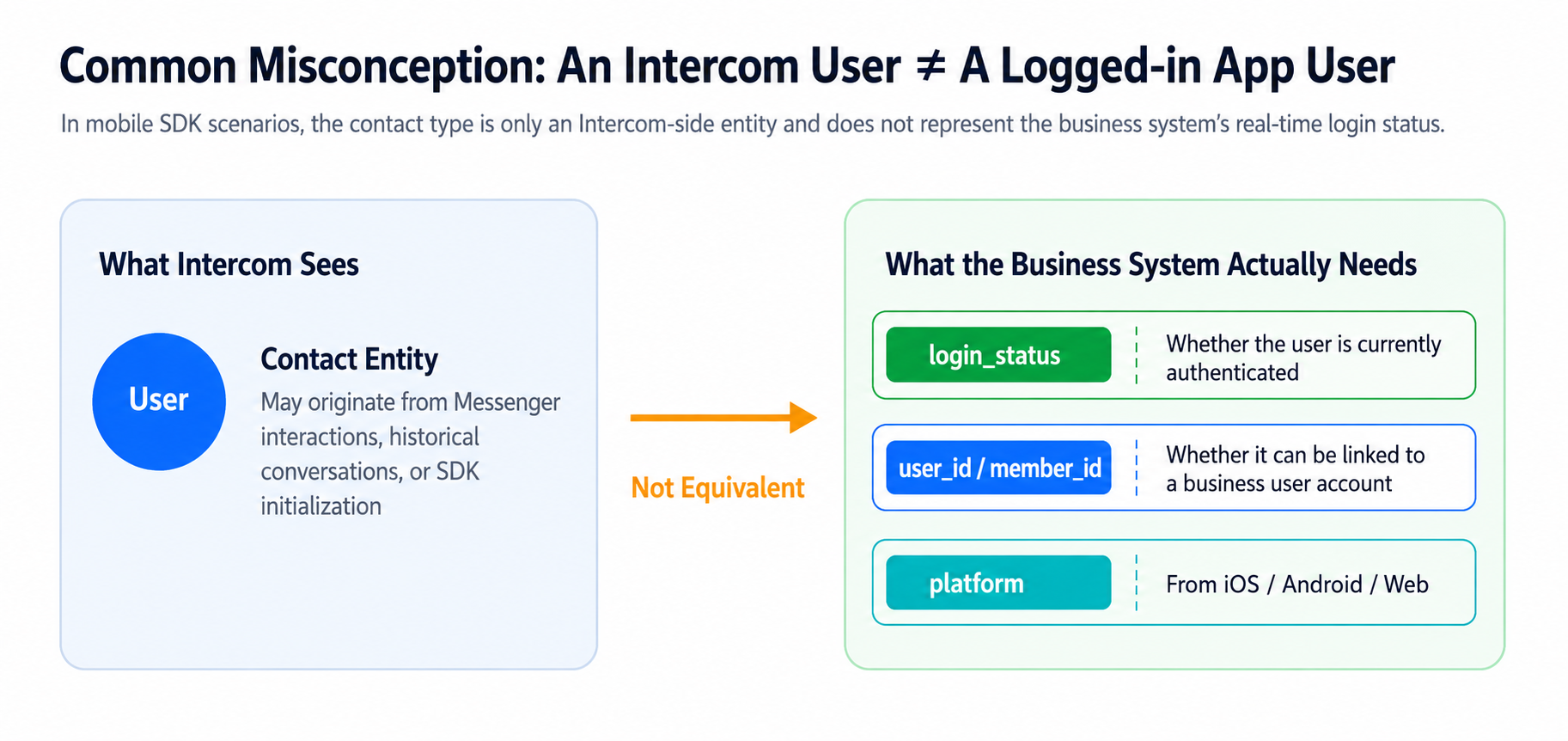
Figure 1: The Difference Between an Intercom User and the Actual App Login State
A Better Approach: Drive Automation Using Real Business Status
Rather than relying solely on contact types such as User, Lead, or Visitor, it is recommended to adopt a “business status + identity association” approach.
The most important field is login_status, which determines whether the current app session is genuinely authenticated.
| Field / Dimension | Recommended Purpose | Description |
| login_status | Primary Validation | Determines whether the current app session is genuinely authenticated and serves as the core field for mobile user identification. |
| user_id /
member_id |
Identity Association | Determines whether the session can be linked to a real business user and is essential before providing personalized services. |
| user_level /
tier |
Supplementary Filter | Useful for customer segmentation and user profiling but should not replace login status validation. |
| platform | Source Identification | Distinguishes iOS, Android, and Web users for routing, troubleshooting, and reporting purposes. |
| last_login_at | Troubleshooting Support | Helps identify stale sessions, synchronization delays, or residual status issues. |
Recommended Architecture: Workflow Routing + Procedure Validation
For mobile Intercom implementations, a two-layer protection model is highly recommended:
The first layer uses Workflow Audiences for routing, while the second layer uses Procedure Guardrails to perform validation before execution.
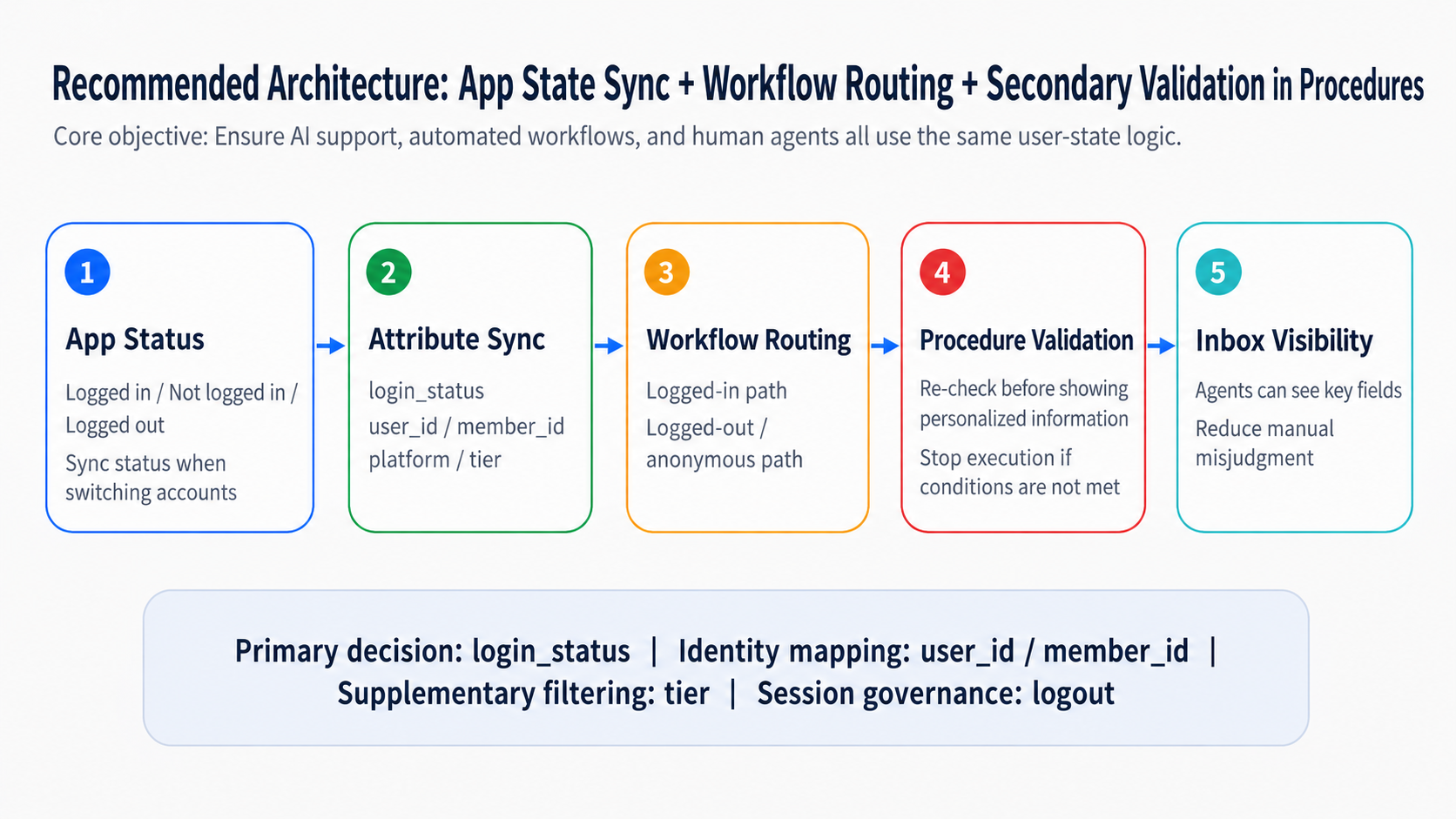
Figure 2: Recommended Architecture for Mobile User Status Identification
01. Workflow Routing
The key principle of Workflow routing is: validate the real user state first, then route to the appropriate path.
This prevents anonymous users from entering personalized service flows and avoids unnecessary AI process execution.
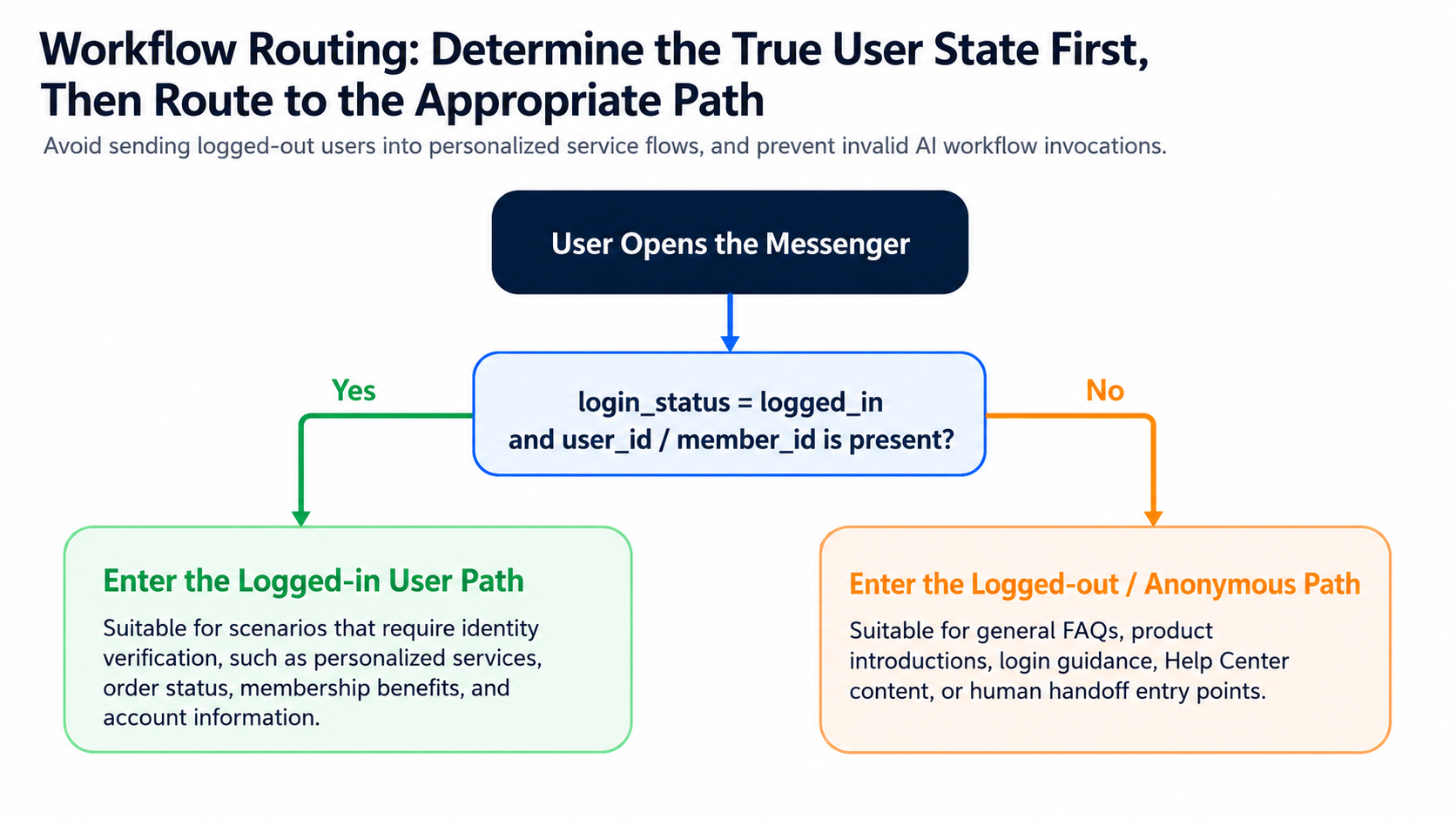
Figure 3: Workflow Routing Based on Actual Login Status
The table below outlines recommended conditions and content types for different user paths:
| Path | Recommended Conditions | Suitable Content |
| Authenticated User Path | Contact Type = User + login_status = logged_in + user_id/member_id exists | Personalized services Progress tracking Membership benefits |
| Anonymous / Unauthenticated Path | login_status = anonymous or empty, or user_id/member_id is empty | General FAQs Product information Login guidance Help Center / Human escalation |
02. Procedure Validation
Even if Workflow routing is already in place, it is not advisable to rely solely on the first layer.
For Procedures involving personal profiles, order history, service progress, membership benefits, and other personalized information, additional validation should be performed before execution:
- Is the user currently authenticated?
- Does the current session contain a valid user_id/member_id?
- Are there any abnormal empty values, stale sessions, or account-switching scenarios?
💡 Simply put: Workflow determines which path the user enters, while Procedure determines whether execution is permitted.
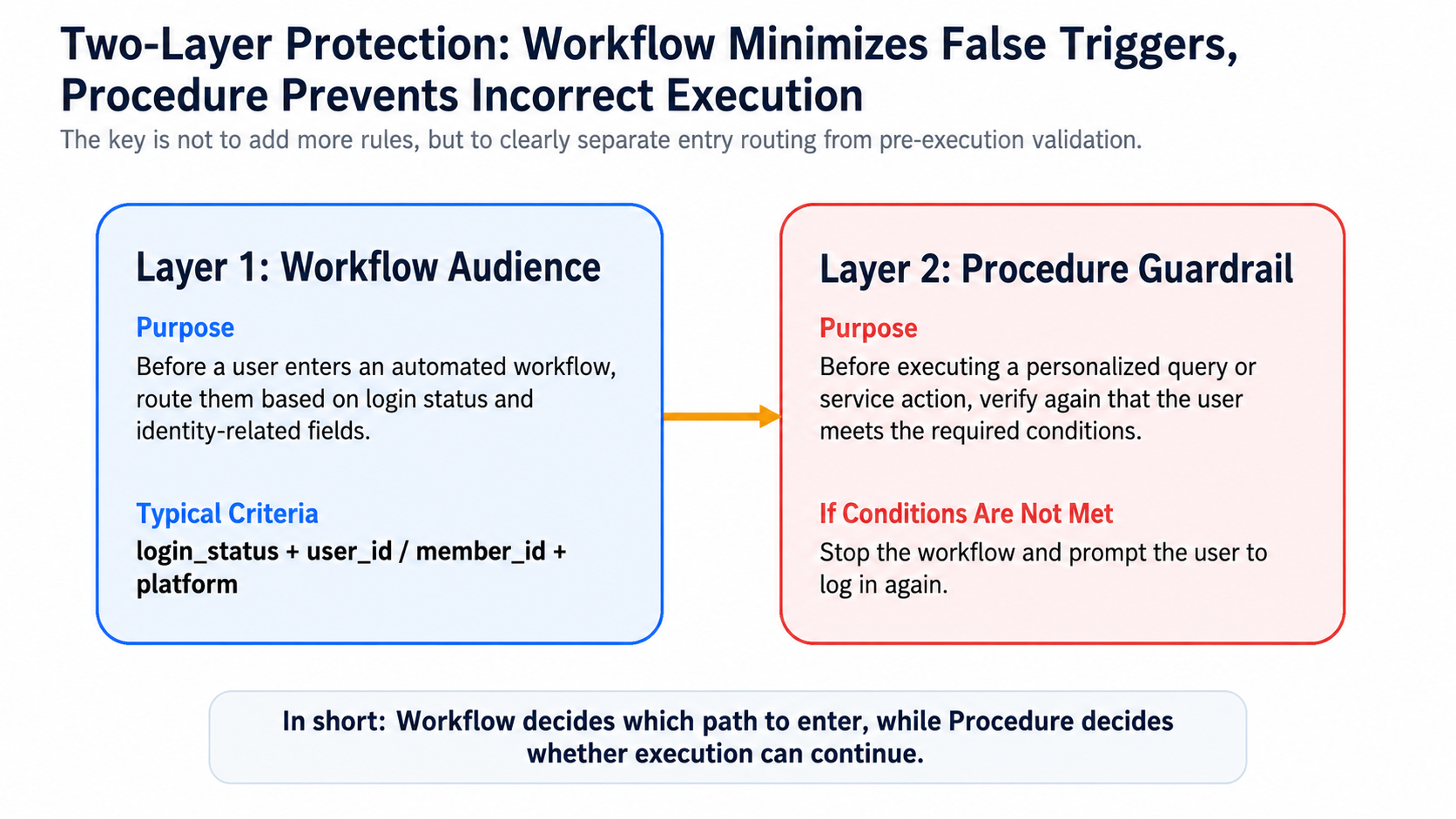
Figure 4: The Two-Layer Protection Model of Workflow and Procedure
An Often Overlooked Detail: Logout Is More Than Exiting the App
When a user taps “Logout” in a mobile app, the business system may have already cleared the authentication state.
However, if the Intercom session state is not cleared simultaneously, Messenger may continue to retain the previous user’s context and attributes.
This can lead to several issues:
- Users continue to be recognized as authenticated after logging out
- Residual information remains after switching accounts
- Workflows continue using outdated user status
- Information displayed in Inbox differs from the actual app state
💡 Therefore, logout in a mobile environment is not simply about leaving the app. More importantly, it requires synchronizing the cleanup of Intercom sessions, caches, and user attributes.
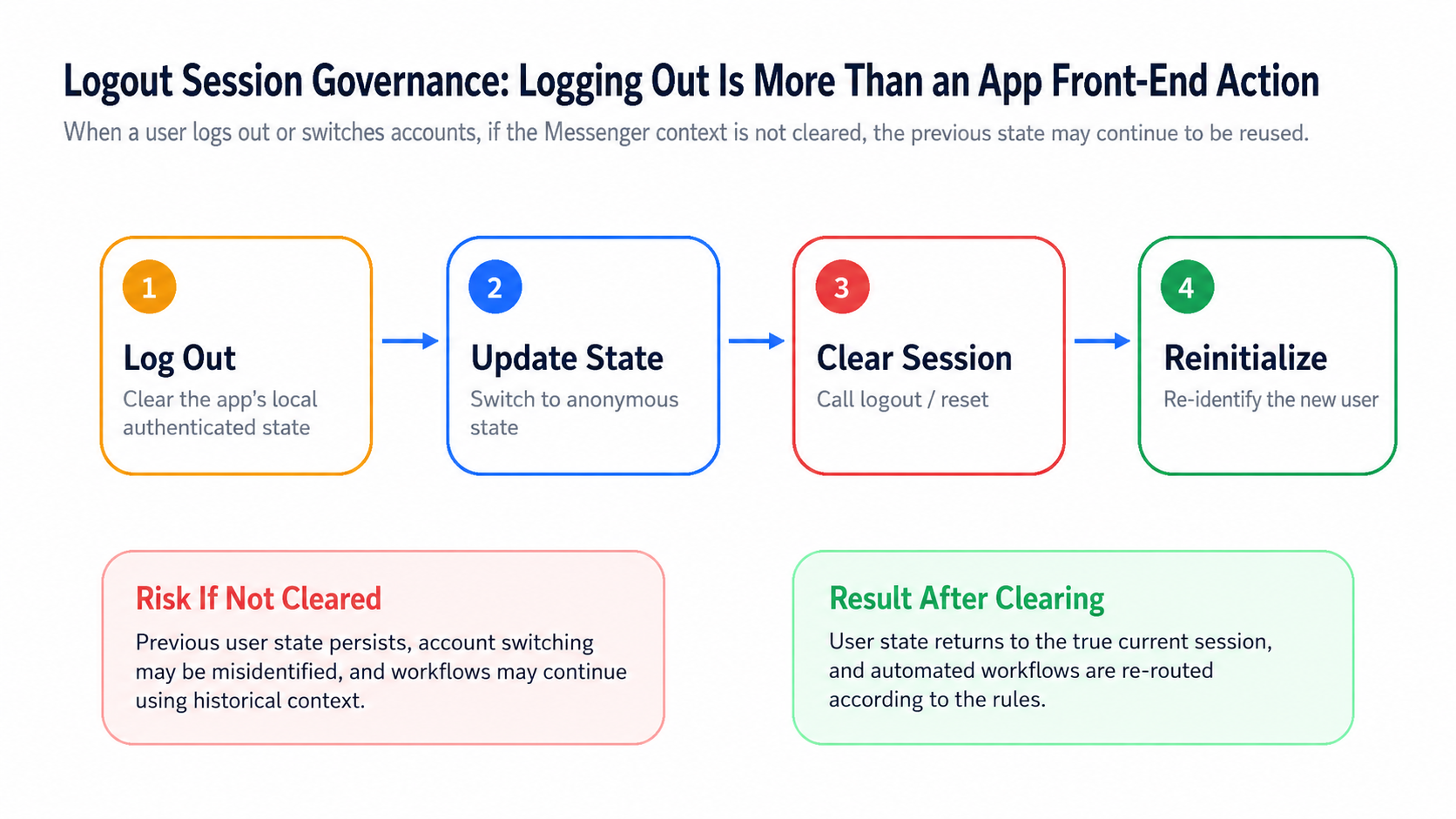
Figure 5: Mobile Logout and Session Cleanup Mechanism
To prevent stale sessions and account mismatches, mobile applications should perform specific actions for different scenarios:
| App Scenario | Recommended Action | Goal |
| User Opens App Without Logging In | Pass anonymous or unauthenticated status; do not provide or clear business user IDs. | Route to unauthenticated path |
| User Successfully Logs In | Pass logged_in status; synchronize user_id/member_id; synchronize user tier if available. | Route to authenticated path |
| User Logs Out | Invoke logout/reset mechanisms and clear local caches and user attributes. | Prevent reuse of stale sessions |
| User Switches Accounts | Clear the previous identity and initialize the new user. | Prevent account data retention or mismatches |
Advice for Customer Support Teams: Understand Real Login Status
Many organizations focus exclusively on technical implementation, but support teams also need to understand user status mechanisms.
Just because a contact appears as a User in the Intercom Inbox does not mean the person is currently logged into the app.
💡 Therefore, it is recommended to display several key fields in the Inbox user sidebar so support agents can quickly determine the actual user state rather than relying on assumptions.
| Recommended Inbox Field | Primary Purpose |
| login_status_text | Provides the most direct indication of whether the current session is logged_in or anonymous. |
| user_id / member_id | Determines whether the session can be associated with a real business user. |
| user_level / tier | Supports user segmentation, membership level assessment, and service prioritization. |
| platform | Identifies whether the issue originates from iOS, Android, or Web. |
| last_login_at | Helps identify stale sessions, synchronization delays, or abnormal residual states. |
The Key to Stable Mobile AI Support: Conduct a User Status Identification Review Before Launch
The stability of mobile AI support depends not only on the accuracy of AI-generated responses but also on clear and reliable user state management.
In Intercom mobile implementations, dependable user identification cannot rely solely on Contact Type or a single business attribute.
A more reliable approach is to synchronize real user status from the app, use Workflow for first-level routing, apply Procedure for second-level validation, clear sessions during logout, and display key fields in the support Inbox.
💡 If your team is planning to deploy Intercom Messenger, Fin AI Agent, or automated customer service workflows on mobile platforms, it is highly recommended to conduct a “User Status Identification Review” before launch.
Although this step may appear basic, it often determines the stability of the AI support experience, the accuracy of automation workflows, and the confidence of support teams in using the system.
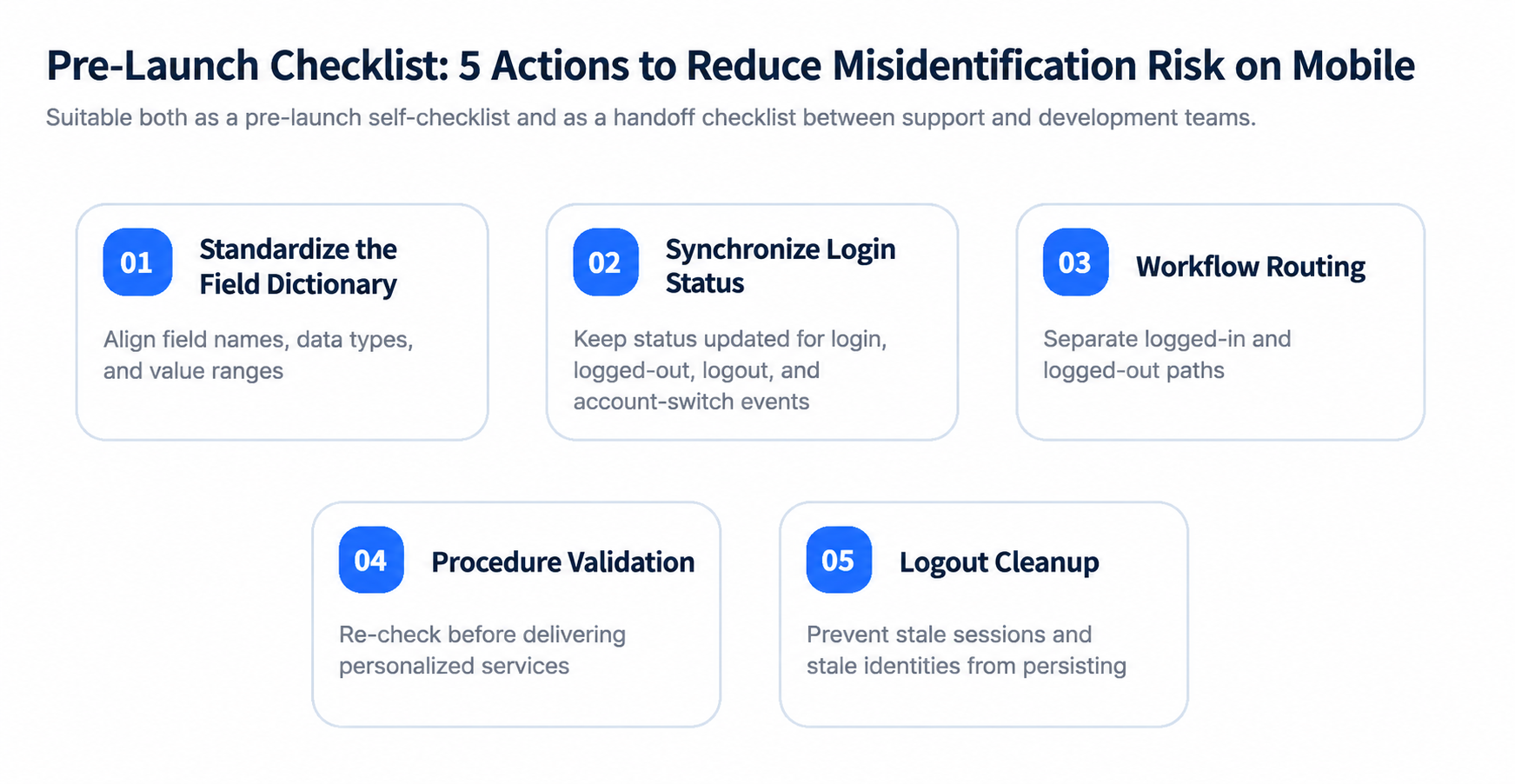
Figure 6: Intercom Mobile Launch Readiness Checklist
If your team is planning or optimizing Intercom, AI-powered customer support, customer communication automation, or digital customer experience initiatives, DKM Ecosystem is here to help.
As a partner specializing in digital customer experience and AI solutions, DKM Ecosystem provides Intercom consulting and implementation services, AI Agent and Workflow design, customer service process optimization, system integration, and operational support to help organizations build more efficient, reliable, and intelligent customer engagement systems.
If you would like to experience AI-powered customer service and automation capabilities firsthand, click to apply for a free Intercom trial today!
As an official Intercom partner in China, DKM Ecosystem is committed to providing comprehensive product consulting, deployment, and technical support services, enabling organizations to use Intercom efficiently and securely. Contact us to learn more about or purchase Intercom solutions.
🌍 Intercom Gold Partner in China, certified professional services partner, serving thousands of customers across the Asia-Pacific region
🚀 Specialized in enterprise-grade integration and localized support for the Intercom AI-powered customer service platform
🔑 Delivering 35+ industry-specific solutions that combine automation with real-time analytics
📈 Providing sales enablement, training, and system optimization services to maximize Intercom value
🌐 Building modern technology stacks powered by cloud, SaaS, BI, big data, and generative AI
👉 Copy the link below to view DKM Ecosystem’s profile on the official Intercom Solution Partner Program page:
https://www.intercom.com/solution-partner-program